
IPTV Has Video but No Sound: What to Check
If IPTV has video but no sound, first check media volume and the selected output device. Then compare a clip that you know contains audible sound, inspect alternative audio tracks only if the player offers them, and compare phone playback with receiver playback. Keep the video source unchanged while checking each route.
Moving video establishes that some playback is working. It does not prove that the stream contains usable audio, that the selected track is audible, or that sound is reaching the speakers you expect. A silent television and a silent phone can therefore lead to different next steps.
Check the output route first
Start playback and raise the phone's media volume cautiously. Check any visible mute control in the player without assuming its location or label. Media volume, ringtone volume, television volume, and a soundbar's volume may be separate controls; changing one does not necessarily change another.
Look at the selected audio destination. Sound may be going to headphones, a Bluetooth speaker, or a receiver instead of the phone speaker. Choose the intended output using the device's available controls, then repeat the same brief passage or stream segment where practical.
If a receiver is involved, check its mute state and the television's audio destination too. Begin at a moderate volume. A restored output can be unexpectedly loud if several controls were raised during the silent period.
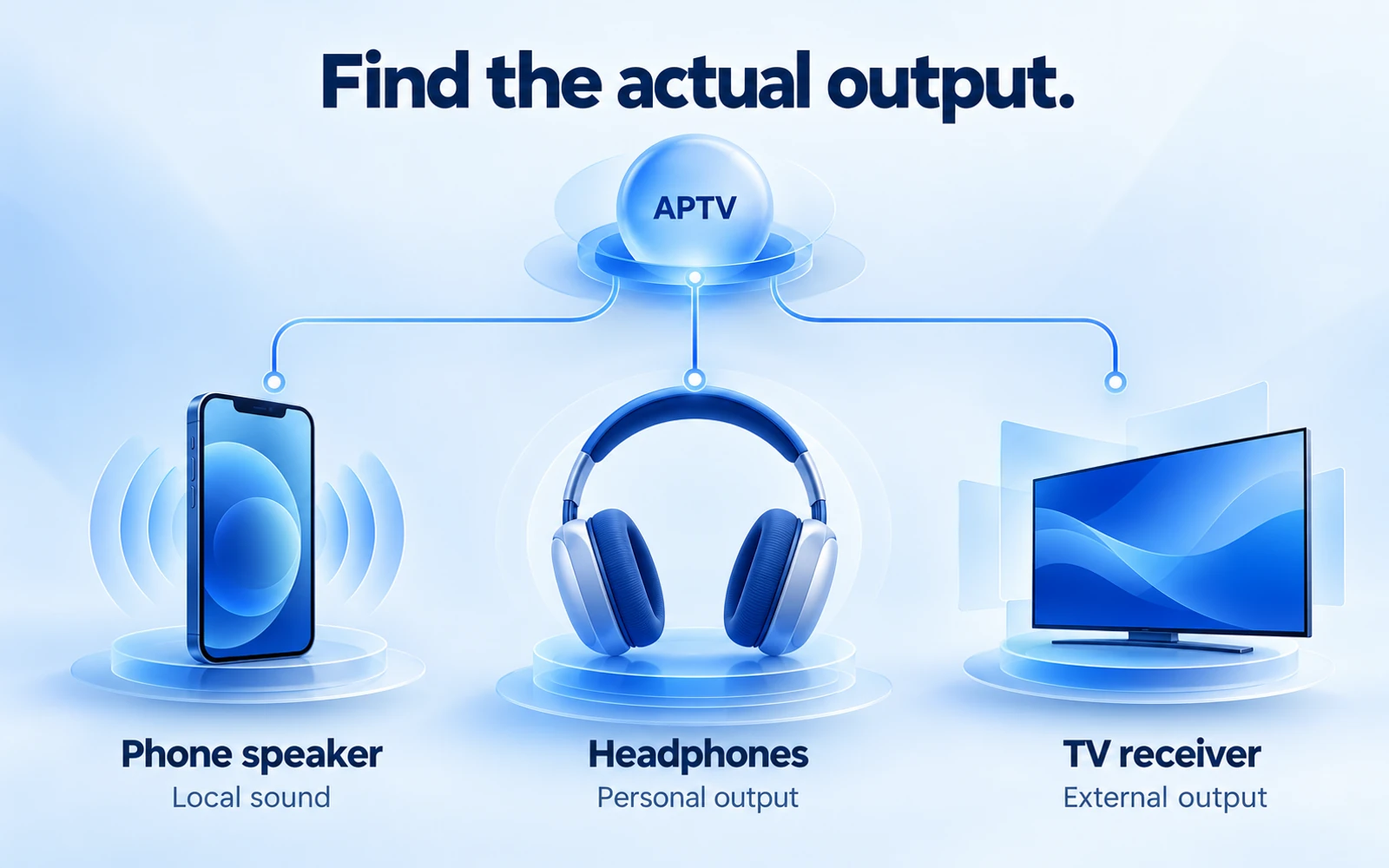
Establish whether the phone itself can produce sound
Play a familiar audiovisual clip through the phone speaker outside the affected stream. Choose material you know has speech or music at the point you are checking. A silent opening, audio-only pause, or video recorded without sound is not a useful control.
If the phone is silent across unrelated material, inspect the device rather than repeatedly changing the IPTV playlist. Apple's sound checks cover speaker-related troubleshooting on iPhone, including checking for obstruction and determining when service may be needed.
For the media comparison, keep track of which volume you actually adjusted. Hearing a ringtone proves that one sound path works; it does not completely verify an application's playback route. Similarly, hearing headphones does not establish that the phone speaker is working normally.
Compare another stream
Return to APTV and open a second authorized stream that has audible content. Keep the output route and volume unchanged. If the second stream has sound, the first source or its audio handling deserves attention. If both are silent, investigate the shared app and output conditions.
Do not use two labels for the same underlying feed as independent tests. They may point to identical media. If you can, compare a source with a different origin and a straightforward audio track, while noting that different formats introduce another possible explanation.
Write down whether the picture continues smoothly during the silent period. If playback also keeps stopping, use the buffering guide for that additional symptom. Sound dropping during a stalled stream is not the same as persistent silence while video continues normally.
Use a small comparison table
You can record observations in plain language rather than guessing a codec diagnosis. The purpose is to locate the difference, not to assign a technical cause before you have enough evidence.
| Comparison | What to keep unchanged | What the result can narrow |
|---|---|---|
| Original versus familiar clip | Phone speaker and volume | Source-specific versus broader silence |
| One stream versus another | App and output route | Entry-specific versus shared conditions |
| Phone versus receiver | Stream and player | Local versus external output behavior |
Repeat a useful comparison once if the symptom is intermittent. Avoid running multiple sessions simultaneously when the source may limit connections. Stop one route before starting the next so the comparison does not create a new access problem.
Also distinguish continuous silence from sound that is simply late. If audio starts after the picture or drifts out of alignment, record that timing behavior separately. Do not report it as an absent track. The same comparison clip and output checks remain useful, but support needs to know whether audio is missing, delayed, distorted, or intermittently interrupted.
Check audio tracks only when available
Some media has multiple audio tracks, but the source and the player both need to expose a usable choice. If your installed player offers an audio-track selector, note the current selection and try a documented alternative. Return to the original choice if the change does not help.
Do not search indefinitely for a control that may not exist in your build. This guide does not establish APTV's current audio-selector labels or decoder settings. Their absence from the instructions is intentional: an invented menu path would make troubleshooting less reliable.
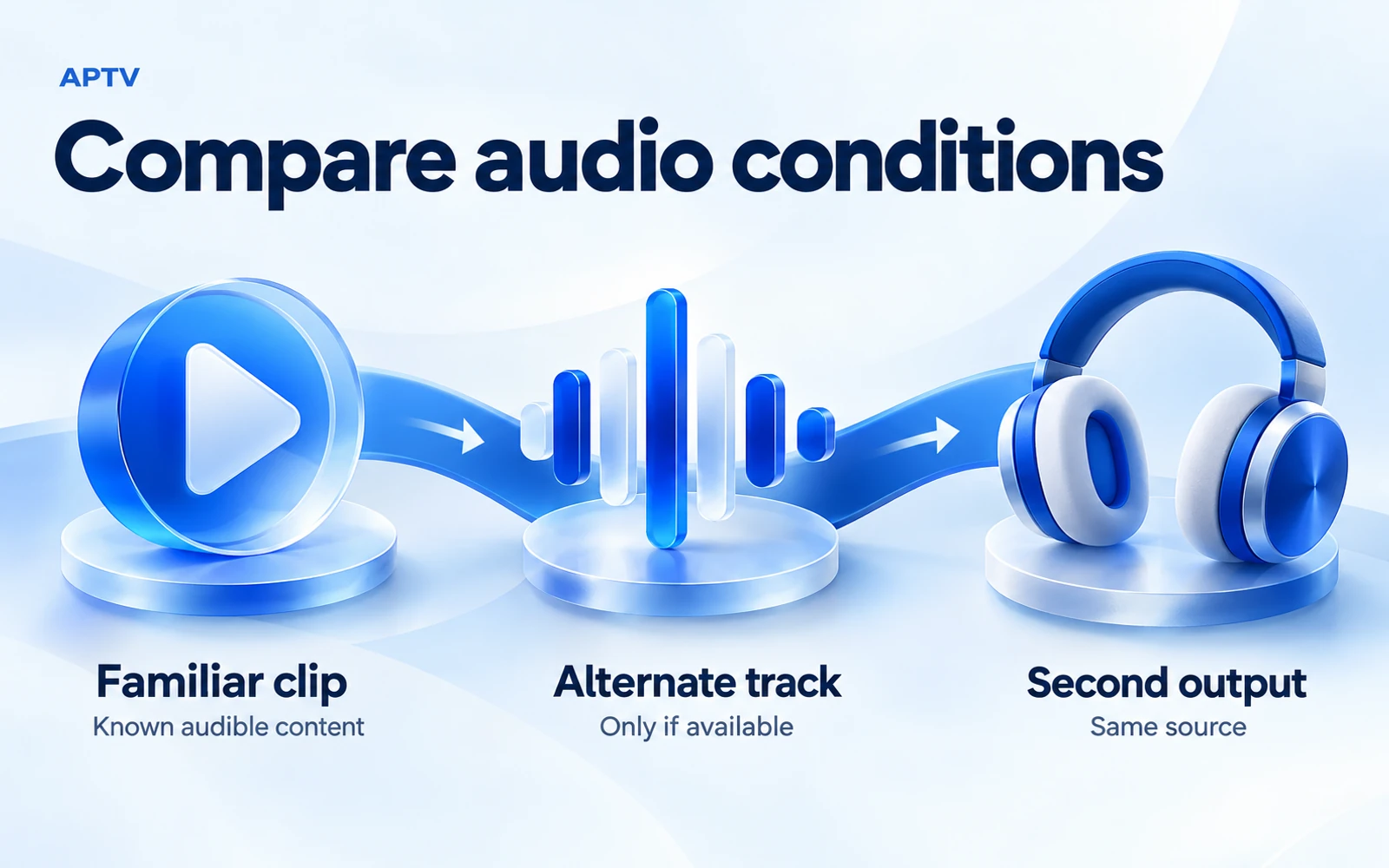
An alternate track may carry a different language, commentary, or audio format. Check that it contains the sound you actually want rather than accepting any noise as a complete fix. A working alternative is useful evidence, but it does not explain why the original track failed.
If only one track is provided, ask the source owner whether it is present and correctly delivered. A video stream can continue while its audio is missing or unavailable. The player cannot select a replacement track that the source does not supply.
Understand codec limits without overdiagnosing
A codec is a method used to encode and decode media. The file extension or playlist name does not identify every audio characteristic. Two streams with the same suffix can contain different audio formats, channel layouts, or packaging.
The official Android media-format support documentation describes platform capabilities and version conditions. It is not an APTV compatibility table. An application may use a particular playback implementation, and an external receiver introduces its own support requirements.
Ask for the actual audio format when the source owner or a trustworthy media-information tool can provide it. Record “unknown” when you do not have that evidence. Do not infer a format from a channel name, a marketing badge, or the fact that another unrelated video worked.
If you control the source, you can compare an authorized version with a different audio encoding through your established media workflow. If you do not control it, request a compatible option from the owner. Renaming the playlist cannot convert the audio inside the stream.
Subtitles are another independent clue. Seeing captions does not prove that an audible audio track was delivered, and changing subtitle language does not necessarily change the selected audio. Note the controls separately when both are available. This avoids mistaking a successful subtitle change for an audio-track test that never actually happened.
Separate phone and receiver playback
Play the same entry through the phone's own speaker first. Then select the receiver using the documented output route. If sound works locally and disappears only after transfer, focus on that external route and the receiver's configuration before editing the playlist.
For an iPhone-to-TV session, check the AirPlay route. App AirPlay and screen mirroring are different paths, and a native TV app is another setup again. Record which method you actually used. “Casting” alone is too broad for a useful support report.
Check the receiver's own volume and selected speakers. A television may send audio to an external sound system even when you expect its internal speakers. Confirm the intended path with the receiver's documentation instead of changing unfamiliar audio-format settings at random.
Compare the receiver with familiar content
Use a known audible clip through the same receiver route if possible. If it is also silent, the receiver or route deserves attention. If it works while only the original stream remains silent, record both outcomes and ask about that stream's audio compatibility.
A second receiver can provide another comparison, but it is not identical hardware. Note its model, software, and connection method. A successful result on one television is evidence about that combination, not a guarantee for every television carrying the same brand.
If you change an output setting, note its original value and make one change at a time. Restore it when the change does not help. This protects a previously working setup for other apps and preserves a clear record of what affected the result.
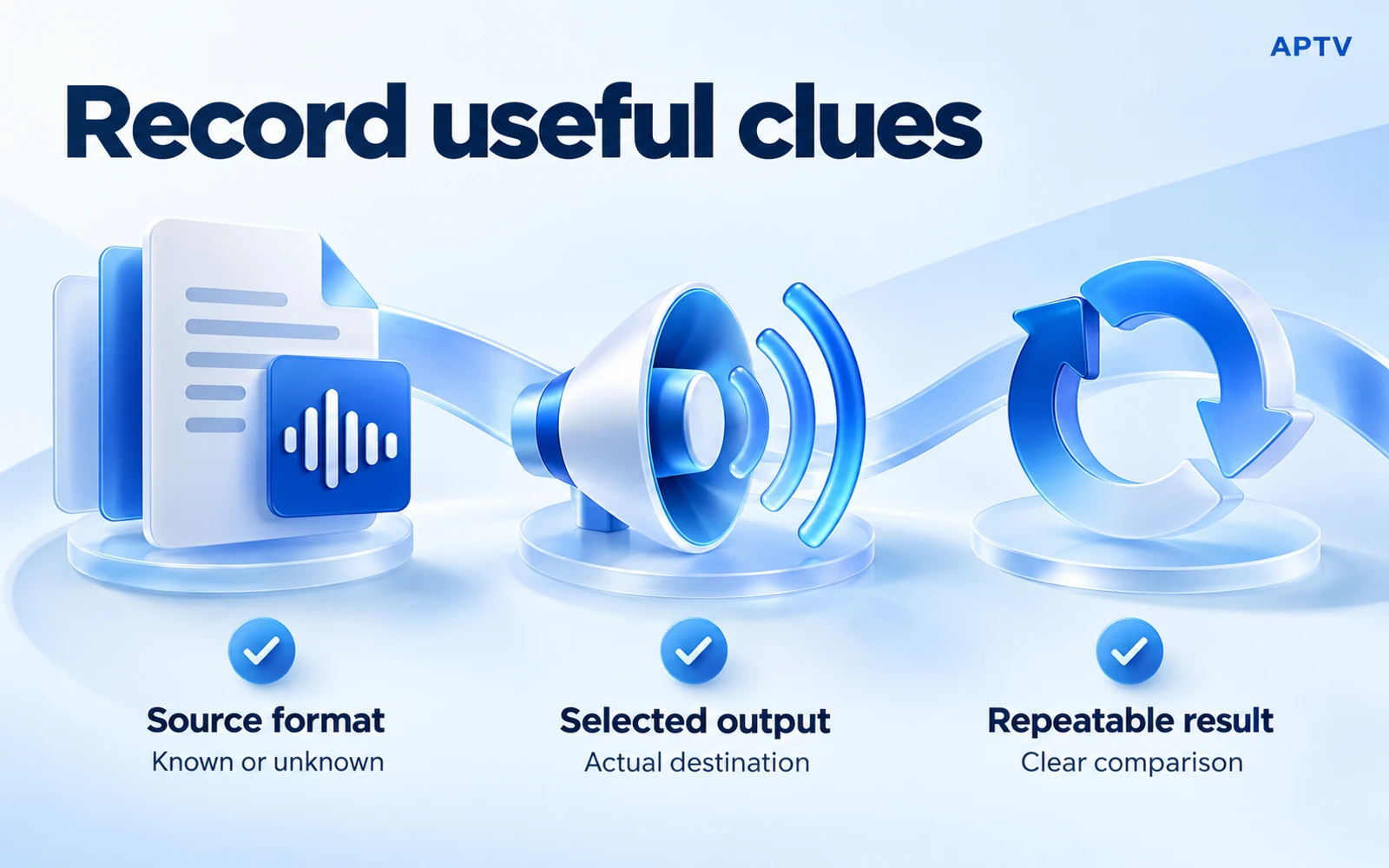
Gather evidence for support
Describe the source, selected output, and repeatable result. Include the phone model, operating system, app version, receiver model if relevant, and any known audio-format information. Say whether a second stream and a familiar clip produced sound under the same conditions.
A useful hypothetical report is: “Video continues on the phone, but this entry has no sound through the phone speaker or headphones. Another authorized stream is audible in the same app. No alternate audio control is visible.” That describes observations without inventing a decoder diagnosis.
Keep usernames, passwords, and private media URLs out of screenshots. A support team may need a reproducible sample, but a public ticket is not the place for your full account playlist. Offer a sanitized example or ask for an appropriate private route when further evidence is needed.
Decide who should investigate next
If the phone is silent across unrelated applications, follow device support guidance. If one source lacks audio across suitable playback routes, ask the source owner. If a supported stream fails consistently only in one app, send that app's support the comparison and version information.
Do not purchase an upgrade solely because silence persists. A paid feature only helps when its documented function addresses the actual limitation. It cannot add an audio track that the source omitted or repair a muted external speaker.
Use APTV for iPhone with your own authorized playlist, then check the output, comparison clip, and receiver separately if sound is missing. Keep the working parts of your setup intact while narrowing the silent path.
Frequently asked questions
Why can IPTV show video without any sound?
Video and audio can fail independently. The sound may be routed to another device, the selected stream may lack a usable audio track, or the playback path may not support that audio format. Begin by checking the intended output and comparing a known-audible item.
What should I check first when APTV has no sound?
Confirm where audio is supposed to play, then check that output's volume and mute state. A connected headset, Bluetooth device, or TV can change the route. Play a known-audible comparison clip through the same output before concluding that the playlist is at fault.
What if only one channel is silent?
Compare another authorized item on the same device and output. If it has sound, focus on the affected stream and any audio tracks actually available for it. Record the channel and result for the source owner instead of assuming the whole app needs to be reset.
Does missing sound prove that the audio codec is unsupported?
No. An unsupported format is one possibility, but routing, source audio, and track selection can produce similar symptoms. Narrow the problem with a known-audible comparison and the same output path. Avoid naming a codec as the cause without evidence about the actual media.
Why does audio work on my phone but disappear when I use a TV?
The receiver introduces its own output settings and format support. Verify TV or receiver volume, the selected output, and whether a comparison item has sound through that route. Phone playback alone does not prove that every receiver can handle the stream's audio.