
How to AirPlay IPTV from an iPhone to a TV
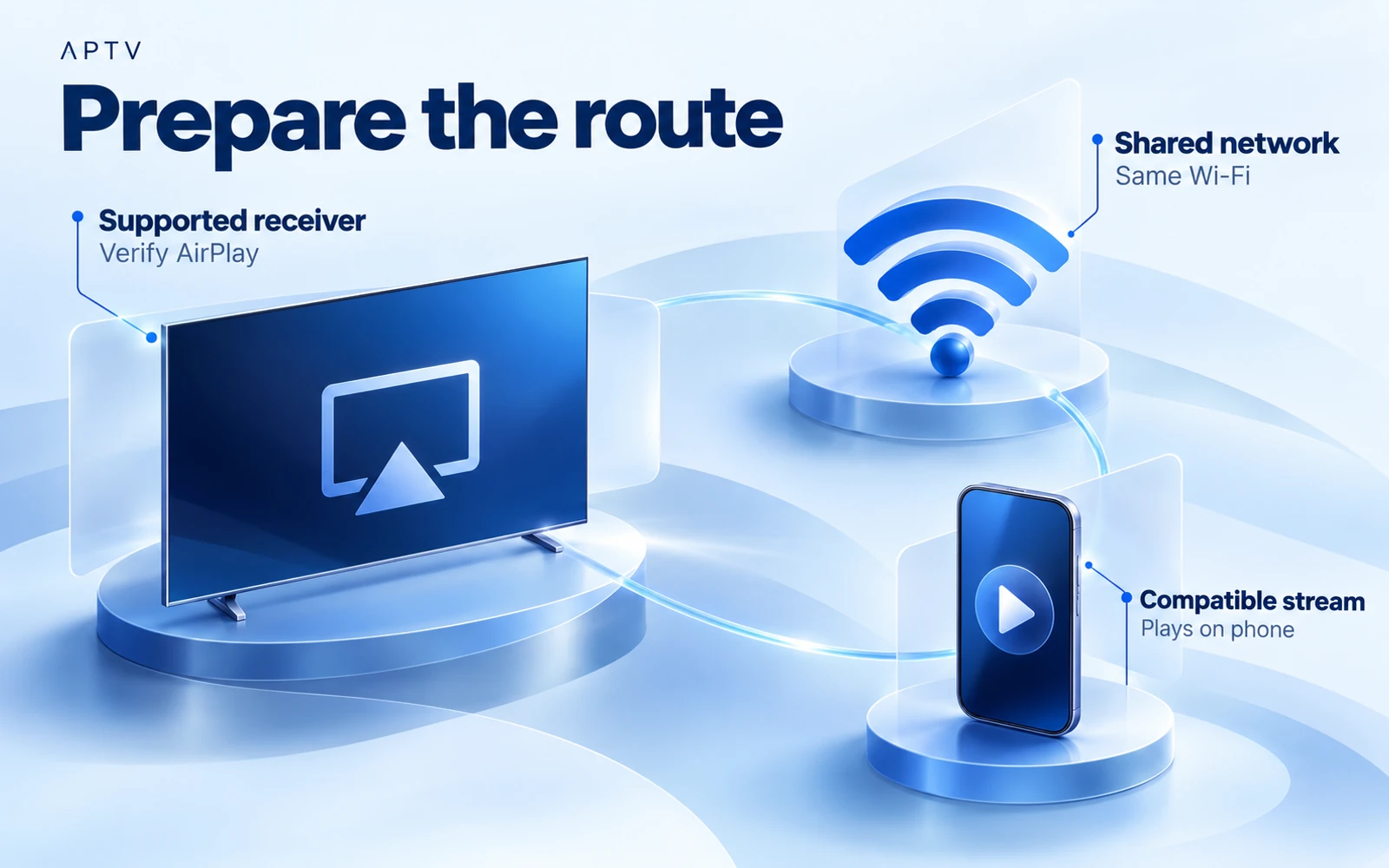
To use IPTV AirPlay from an iPhone to a TV, first confirm that the stream plays on the phone and that the television or attached receiver supports AirPlay. Put both devices on the same Wi-Fi network, select the receiver through the available AirPlay route, and check picture and sound separately.
APTV's iPhone listing documents AirPlay support, and the owner has confirmed casting functionality. That does not establish compatibility with every television, receiver, stream, or app version. This guide uses Apple's documented connection steps and identifies where the exact APTV controls still depend on your installed build.
Check the phone and receiver
Look up the receiver's actual AirPlay capability. A smart TV, streaming stick, or casting icon is not enough by itself. A device that supports Google Cast or DLNA may not offer AirPlay, and an Android TV operating system does not automatically establish an AirPlay receiver.
If you use an Apple TV box, distinguish it from the Apple TV app installed on another television. The presence of an app with a familiar name does not identify the network protocol that the television can receive. Use the receiver manufacturer's model information when uncertain.
You also need a stream that the complete playback route can handle. Successful playback on the phone is the starting point, not proof that its video and audio will transfer correctly. Keep the receiver awake and use a network where the devices are allowed to communicate.
Prepare a straightforward first connection
Use your home network or another network you administer for the initial setup. Guest networks may separate clients even when the network name looks familiar. In a hotel or workplace, ask the network administrator about supported device connections instead of changing unfamiliar security settings.
Select the intended television input if an external receiver is connected through HDMI. Confirm that you can see the receiver's normal screen before investigating phone playback. A television displaying the wrong input can make a successful network connection appear to have produced no picture.
Have the receiver remote nearby. You may need to enable AirPlay in its own settings, approve a connection, or enter a displayed passcode on the phone. The names and locations of receiver settings vary, so follow that device's documentation.
Give receivers recognizable names through their own documented setup when you manage several rooms. During the first connection, compare the name shown on the phone with the physical screen in front of you. This avoids sending private viewing material to another room and makes a later support report more precise about which receiver was selected.
Start playback on the iPhone
If you have not added your source yet, import your playlist and open one familiar entry. Verify that the expected picture appears and that audio is audible through the phone. Start with ordinary content you are authorized to view, not a specialized format demonstration.
Keep the source unchanged during the first receiver check. Switching to a different channel at the same time changes two variables. If the TV result fails, you want to know that the same stream was working locally immediately beforehand.
Note whether the source is audio-only, live video, or an on-demand file. An audio-only stream will not create a television picture. A live stream may not provide seeking or a full replay timeline, so missing those features does not itself establish an AirPlay fault.
Connect through AirPlay
Apple's guide to AirPlay and screen mirroring describes video output through an app's AirPlay control and screen duplication through Control Center. These are separate routes. Begin with app video output when your current app and stream expose that option.
- Keep the iPhone and AirPlay receiver on the same Wi-Fi network.
- Start the chosen video and open its available output controls.
- Select AirPlay where offered, then choose the intended receiver.
- Follow any receiver passcode prompt on the iPhone.
- Check the television picture and the intended audio output.
These are general AirPlay steps, not a claim that APTV places a particular icon in a particular corner. If your build does not expose the expected output option, check its current documentation or contact support with the app version and receiver model.
Confirm which device is playing
Do not rely only on a device name appearing in a list. Confirm that the TV shows the selected content and that play or pause affects the expected screen. If the phone and TV behave differently, record the behavior rather than assuming that every output route duplicates the entire interface.
Check the volume on the television or audio receiver as well as the phone. If a soundbar is connected, confirm that the television is sending audio to the intended destination. Increase volume cautiously after a silent test so a restored signal does not become unexpectedly loud.
Understand mirroring and native TV playback
Screen mirroring duplicates the phone's display. A native TV application runs on the receiver itself. App AirPlay sends supported playback through the application's output route. These approaches can look similar from the sofa while involving different software and controls.
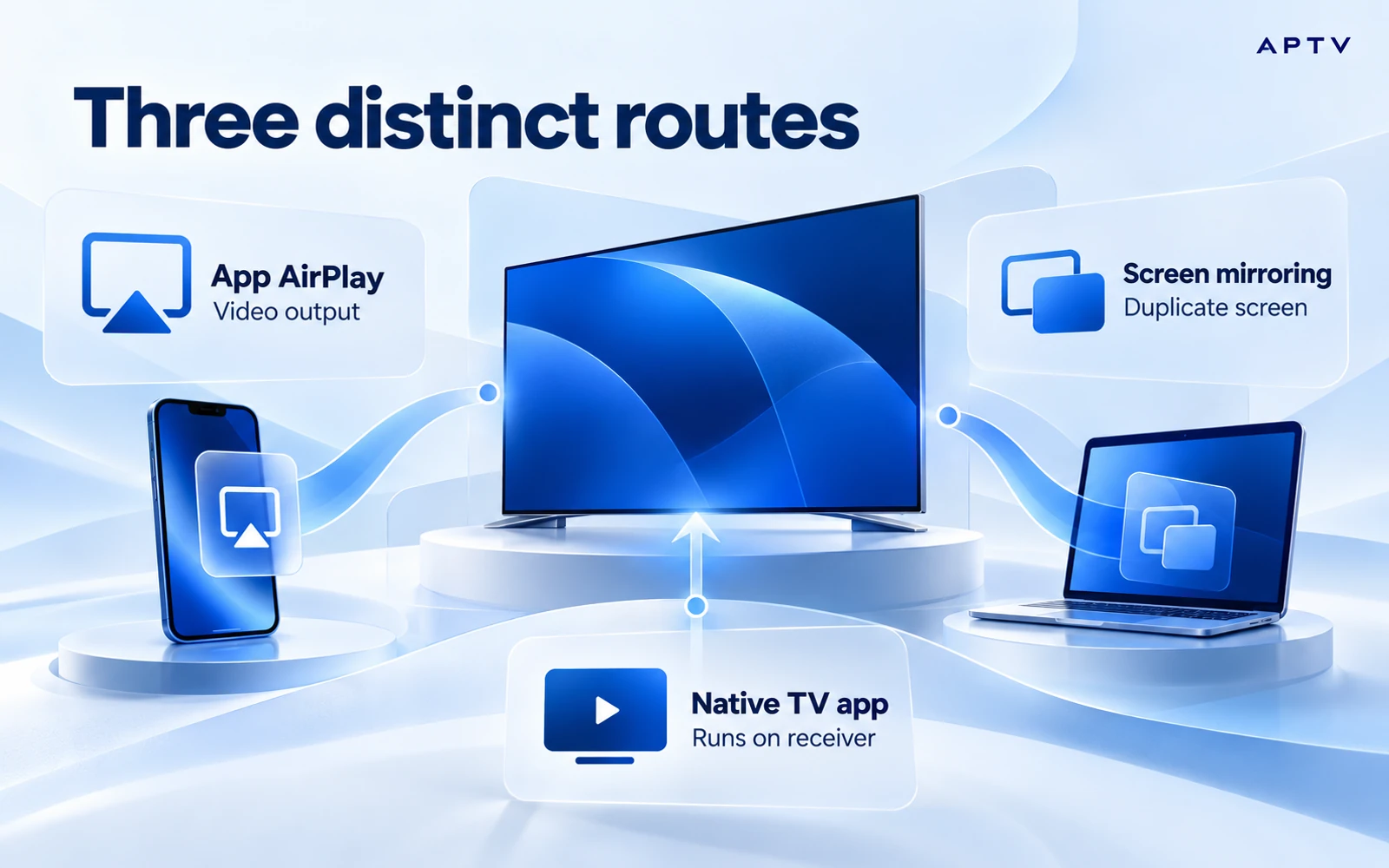
| Route | Where you start | What to verify |
|---|---|---|
| App AirPlay | The video app's supported output control | Stream and receiver compatibility |
| Screen mirroring | iPhone Control Center | Screen duplication and content behavior |
| Native TV app | An application installed on the TV device | That app's own inputs and capabilities |
For mirroring, open Control Center, choose Screen Mirroring, and select the receiver. Enter the displayed passcode if asked. To end the session, return to Screen Mirroring and choose Stop Mirroring. Apple documents this operating-system workflow; it is not an APTV-specific feature demonstration.
Mirroring can expose notifications or other content shown on the phone. Prepare your screen before using it in a shared room. Do not assume that mirroring bypasses content restrictions or guarantees the same quality, controls, and background behavior as app video output.
A native TV app is a separate compatibility question. The owner has confirmed broader TV functionality, but this guide does not establish a specific native application for every receiver. Check the exact platform, store listing, and device before planning an independent TV setup.
Treat a change of network as a new connection attempt. If the phone leaves your home Wi-Fi while the receiver remains there, the conditions are no longer the same as the successful setup. Return to a shared supported network before diagnosing the app. Record any automatic connection behavior that makes it unclear which receiver is currently active.
Fix discovery problems first
If the receiver does not appear, concentrate on discovery before changing the playlist. Confirm that AirPlay is enabled on the receiver, both devices are awake, and the expected network is in use. Inspect the actual connection rather than assuming that nearby devices share it.
Follow Apple's AirPlay checks, including software updates, restarting the devices, and reviewing relevant receiving restrictions. Make one change and check again. Avoid a full network reset before simpler checks have established whether the receiver can be discovered at all.
If another supported application sees the receiver but APTV does not, record that comparison. It points toward an app or playback-route difference, but it does not identify the cause by itself. Include the exact stream, app version, and whether you used app output or mirroring.
If the receiver appears but playback fails
Return playback to the phone and check the same entry again. If it now fails locally too, investigate the source rather than blaming AirPlay. If it still plays on the phone, compare a second authorized stream through the same receiver route.
When only one stream fails, its media characteristics or source conditions deserve attention. When every stream fails through one receiver, check that receiver's software and configuration. A second receiver is a useful comparison only if you note its different model and supported capabilities.
Do not treat a TV's general casting claim as evidence for a particular protocol. AirPlay, Google Cast, DLNA, screen mirroring, Apple CarPlay, and Android Auto are distinct contexts. This guide concerns the iPhone-to-AirPlay-receiver route, not in-car playback or another casting system.
If several people share the receiver, confirm that another session has not taken over while you were checking the phone. A change of displayed content is an observation to investigate, not immediate proof that your playlist changed. Repeat the check when the receiver is available for your session.
Verify picture, sound, and the return route
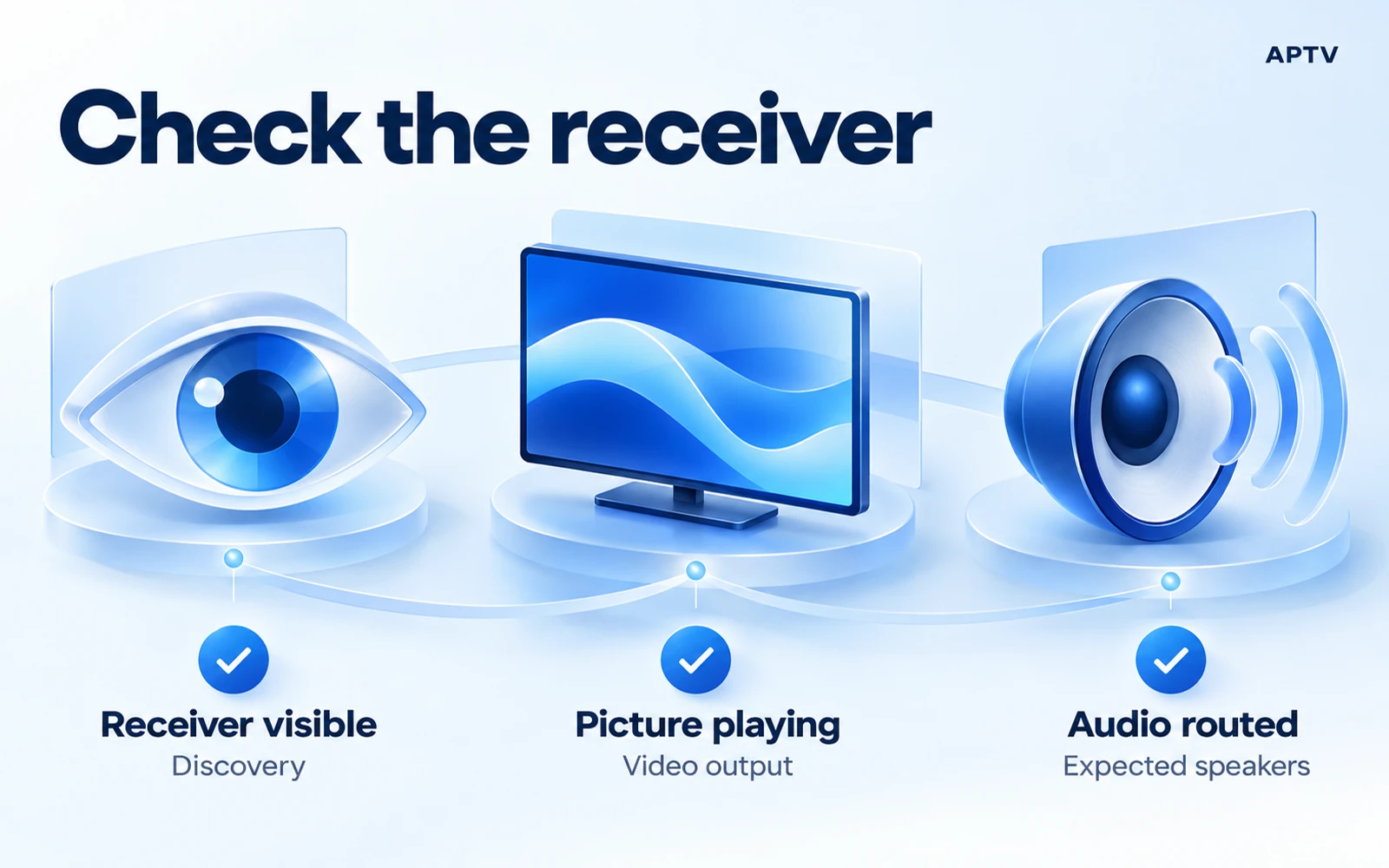
Before settling in, check that the intended receiver is selected, the picture continues, and sound comes from the expected speakers. If you have picture but no sound, compare the phone speaker with receiver playback and follow the audio-specific checks.
Try stopping the session and returning playback to the phone. Knowing how to leave the route is useful when a shared TV will be used for something else. Do not assume closing the app, locking the phone, or changing TV inputs always ends every possible playback session identically.
Keep a short compatibility note for the combination that worked: iPhone model, iOS version, APTV version, receiver model and software, connection method, and stream type. This is your own observation record. It does not establish that a different model in the same product family will behave identically.
If you contact support, include the first failed stage: discovery, connection, picture, audio, or returning to local playback. Remove private playlist information from screenshots. That detail makes a receiver problem easier to separate from a stream that was already unavailable.
Use APTV for iPhone with your own authorized playlist, establish local playback first, and then connect a supported AirPlay receiver. A download or upgrade cannot guarantee that an incompatible receiver or unavailable stream will start working.
Frequently asked questions
Can every smart TV receive an AirPlay stream?
No. The receiving device must support the AirPlay route you intend to use. Check the exact TV or receiver model and its settings before troubleshooting the app. A television being connected to the internet does not, by itself, establish AirPlay support.
Do my iPhone and TV need to be on the same network?
For the setup described in this guide, connect the iPhone and supported receiver to the same local Wi-Fi network. Guest-network isolation or separate networks can prevent discovery. Confirm that the devices can communicate locally before changing the playlist or its media addresses.
What is the difference between AirPlay playback and screen mirroring?
An app's supported AirPlay playback route sends media to a receiver, while screen mirroring displays the phone's screen. Their controls and playback behavior can differ. Use the route supported by your app and receiver, and do not assume that success with one proves support for the other.
Why does my TV not appear as an AirPlay destination?
Start with receiver support, AirPlay settings, and local network discovery. Confirm the receiver is available and both devices are on the intended network. A missing destination is a different problem from a listed receiver that connects but cannot play a particular stream.
Why can I play a stream on my iPhone but not through AirPlay?
Phone playback and receiver playback use different paths. After confirming the source works on the phone, compare a known-working item through the receiver and check its media support. Note whether the failure is connection, picture, or sound rather than treating all three as the same issue.