
IPTV Keeps Buffering: A Phone Troubleshooting Guide
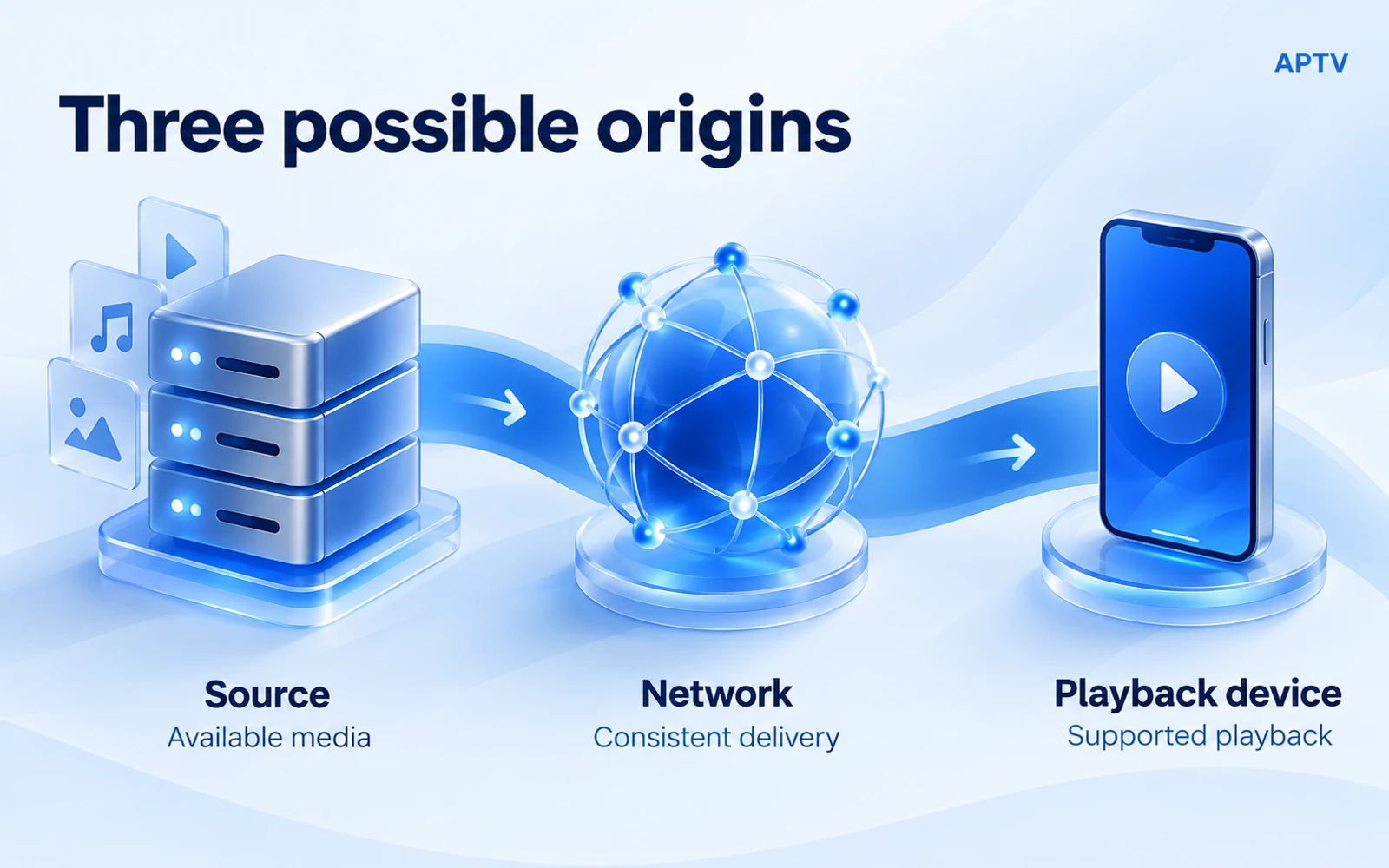
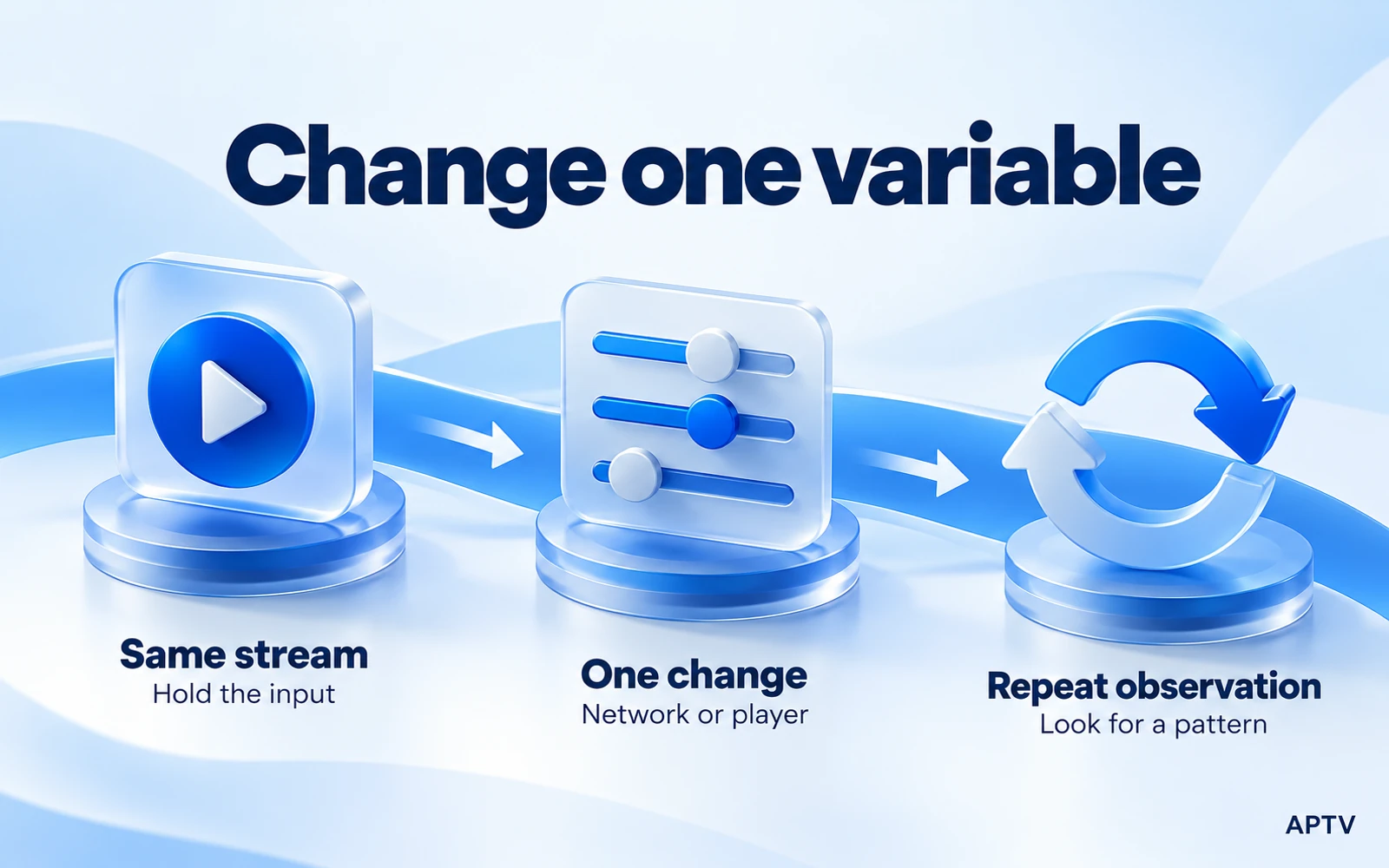
To troubleshoot IPTV buffering, compare the source, connection, and playback device separately. Start with one stream, try another authorized stream under the same conditions, then change only the network or player. A repeatable difference tells you more than a long list of settings changed at once.
Buffering means playback begins and then pauses while the player waits for more playable media. This guide does not treat an empty collection, an authentication error, or a stream that never opens as the same symptom. For those problems, begin with playlist import failures.
There is no universal connection-speed number that guarantees uninterrupted IPTV. A source's delivery pattern, chosen rendition, network consistency, and device behavior all matter. A fast result from an unrelated speed-test server cannot prove that the route to your particular stream is reliable.
Confirm the symptom before changing anything
Choose one affected entry and describe what you can actually observe. Does the picture freeze while audio continues? Do both stop and then resume? Does the app close, or does a loading indicator remain visible? Those outcomes may have different causes, even if they interrupt the same viewing session.
Keep the phone in the foreground for the first comparison and use its own display and speaker. Disconnect a TV output for now. Note whether the problem occurs immediately after startup, during steady playback, or after switching away from the app. Do not call all three situations identical.
Establish a repeatable starting point
Use a familiar stream that should be active at the time of the check. Keep your position, phone, network, and playback route unchanged. Close other copies of that same stream on devices you control, particularly if your source limits simultaneous sessions.
Choose an observation interval that is practical for you and use the same interval for each comparison. You do not need an elaborate benchmark. Write down whether playback started, whether it stopped, and whether it recovered. Avoid treating one lucky minute as proof that an intermittent problem has disappeared.
If playback stops only after the phone locks, record that exact condition. It may involve foreground or background behavior rather than continuous streaming under normal viewing conditions. Test the relevant condition separately instead of immediately changing system battery settings or assuming a network failure.
Test the source with more than one stream
Try a second authorized stream while keeping the rest of the setup fixed. Prefer an independent source when possible. Several entries in one collection may share the same server, so they are not necessarily independent evidence that the entire internet connection is failing.
If only one entry repeatedly stalls, ask its owner about current availability and delivery problems. If every entry from one source stalls but an independent source plays, concentrate on that source or the route to it. Neither result proves that the phone can play every possible format.
Apple publishes reference HLS streams for development and testing. These can provide a documented comparison source when their format is appropriate for your setup. Choose deliberately: a specialized demonstration using advanced codecs or spatial media is not a universal compatibility test for all phones.
Do not describe a reference stream as “known good” solely because its URL is public. First confirm that it is reachable and works in the control environment you are using. Public examples can change, and the player still needs to support the selected stream's media characteristics.
Understand what a source comparison proves
Imagine that your usual channel stalls while a reference stream continues on the same phone. That supports investigating the original source, but it does not isolate one cause. The two streams may use different formats, resolutions, delivery servers, or access conditions.
Conversely, two stalled streams do not prove that both source owners have outages. The connection or device is shared. Use the result to choose the next comparison, and keep the wording provisional until you have evidence that separates those possibilities.
Check when the interruptions occur relative to the source schedule. A feed that stops at the end of a scheduled session is behaving differently from one that repeatedly resumes during an active program. Record the expected availability window if the source provides one. That context can prevent normal endings from being reported as a persistent buffering defect.
Test the connection without changing everything
Compare the same stream on your usual Wi-Fi and another connection you are authorized to use. If you choose cellular data, check your plan and expected usage first. Keep the player, phone, and output route the same, and note the approximate time of both attempts.
Move closer to your Wi-Fi access point for a separate check. Do not simultaneously replace the playlist, change the app, and switch to cellular. If the result improves after all three changes, you will not know which change helped or whether the source recovered independently.
Look for a pattern, not a one-off improvement
Repeat the original condition after a successful alternative if doing so is practical. A source may recover between attempts, so the order of your checks matters. A useful pattern is repeated failure on one connection and repeated success on another with the same stream and phone.
Consider other traffic on a network you control. Temporarily pausing a large download can be a useful comparison; resetting the router is a broader change that can interrupt other users. Start with the smallest change that answers the question you have identified.
A VPN is not a universal buffering fix. It changes the route and may introduce additional constraints. If you already use one, note its presence when comparing authorized connections. Do not interpret a different result as proof of deliberate throttling, and do not use the comparison to evade source restrictions.
Compare playback conditions
If the source and connection checks remain inconclusive, compare the same authorized stream in another suitable player. On Android, VLC for Android documents network-stream playback, including HLS. It can serve as a control when it accepts the media you are checking.
Keep the comparison sequential if your source limits concurrent use. Stop playback in the first app before opening the second. Record whether both used the same address and, if visible, the same selected quality. Automatic rendition selection can make two seemingly identical checks different.
If one player succeeds consistently and another does not, that is useful evidence of a playback-path difference. It is not enough to identify a particular decoder bug. Supply the reproducible conditions to support instead of inventing a setting name or assuming that all players process the stream identically.
Separate picture, sound, and receiver issues
A moving picture with silent audio needs a different investigation from a stalled stream. Follow the guide to video with no sound when the picture continues normally. Increasing a hypothetical buffer setting will not necessarily change an audio-output problem.
Likewise, if playback works on the phone but stalls on a receiver, record the transfer method and receiver model. AirPlay, Google Cast, DLNA, and screen mirroring are different paths. A successful phone check does not establish that every receiver supports the same stream.
Check for an app update through the official store, but preserve your baseline first. An update is a meaningful variable. If the result changes afterward, record the old and new versions where available rather than saying that updating always solves buffering.
Keep quality changes separate too. If the player or source offers a documented lower-quality option, it can be another controlled comparison. Record what you selected and restore the original condition afterward. Improvement suggests that the changed playback demands matter, but it does not identify whether the original constraint was delivery, decoding, or another part of the path.
Choose the next action from the evidence
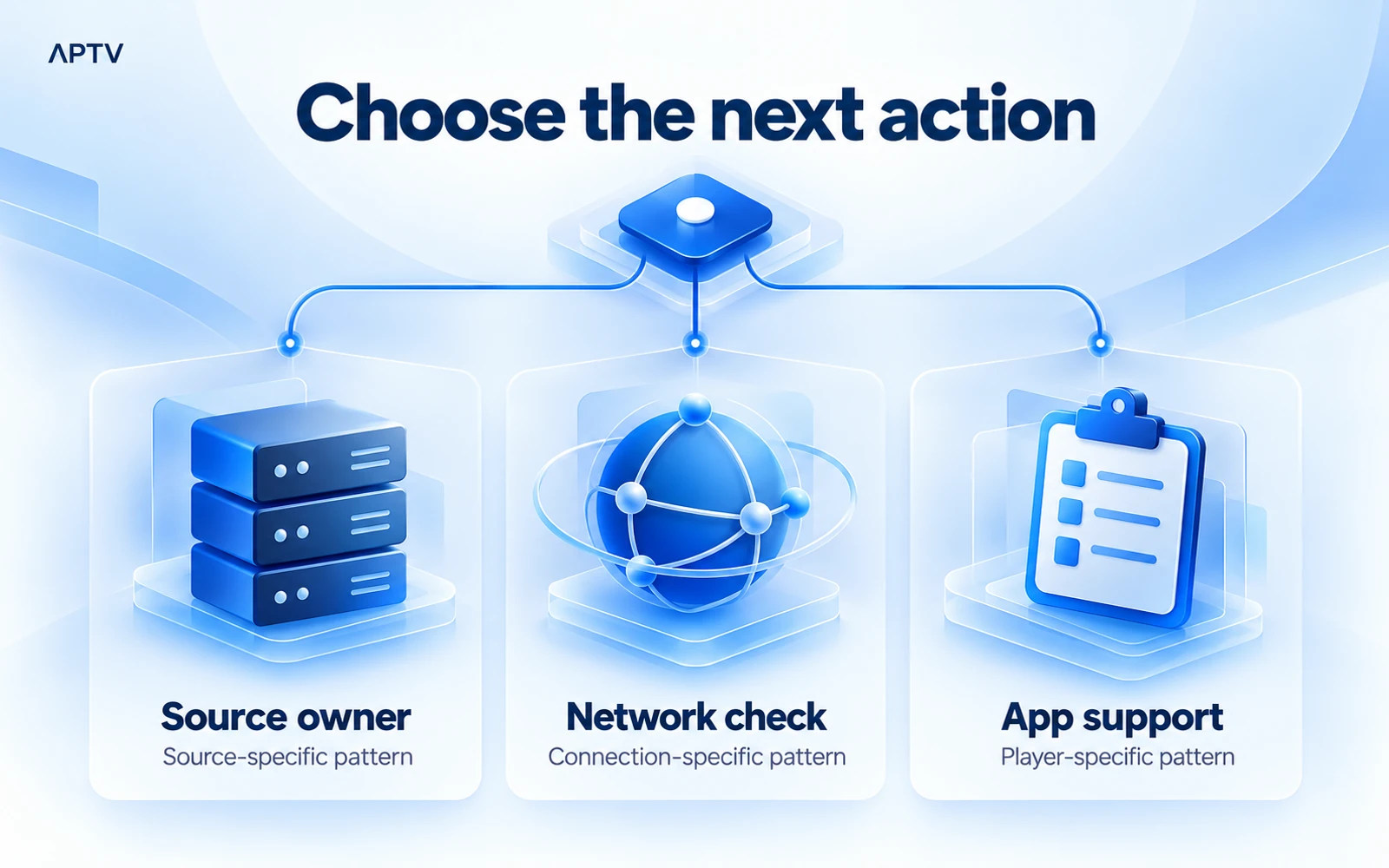
Use this table as a routing aid. The patterns suggest where to investigate next; they do not certify a diagnosis or establish fault.
| Repeated pattern | Best next contact or check |
|---|---|
| One source fails across players and connections | Ask the source owner about availability and delivery |
| Several sources fail only on one connection | Review that network and its route to the services |
| One player fails under otherwise matched conditions | Send a reproducible report to that app's support |
| Only receiver playback fails | Check the receiver, protocol, and transferred format |
Keep a short observation log
Record the date and time, stream label, phone and operating system, app version, connection, output route, and observed result. Use labels rather than full private URLs. If you note a delay or interruption count, measure it during your own attempt and state the observation interval.
Do not fill missing fields with guesses. “Quality selected automatically; rendition unknown” is useful context. So is “source recovered before the comparison could be repeated.” A partial honest record helps support decide what to check next without creating a false impression of controlled testing.
Preserve evidence before a broad reset. Reinstalling can remove local configuration, while restarting several devices at once obscures which one mattered. If a smaller comparison identifies the likely branch, follow it before making disruptive changes.
When to stop troubleshooting locally
If the source owner confirms an outage, repeated phone changes will not restore its server. If an independent clip also fails through your phone's speaker and display, the problem may extend beyond the original playlist. Escalate with the comparison results rather than purchasing an upgrade in the hope that it repairs every cause.
For Android viewing, APTV for Android can play your own supported playlists. Bring an authorized playlist and use the controlled checks above if playback stalls. An installation or paid feature does not guarantee that a slow, restricted, or unavailable source will become reliable.
Frequently asked questions
Why does IPTV buffer even when a speed test looks fast?
A speed test measures a particular connection to its test server. It does not prove that your stream's server can deliver media consistently along the same route. Compare the same item under controlled conditions and check the source, connection, and playback device separately.
What should I check if only one channel keeps buffering?
Compare that item with another authorized stream on the same device and connection. If the comparison plays smoothly, investigate the affected source rather than changing every app setting. Record the item, time, and result so its operator can check the specific failure.
Will choosing a lower video quality stop buffering?
It may help when the source offers a lower-bitrate option and delivery cannot keep up with the current stream. Test the available option while keeping other conditions the same. It will not repair an unavailable source or an unrelated playback compatibility problem.
Is a VPN a guaranteed fix for IPTV buffering?
No. A VPN changes the network route and can make a particular connection better or worse. Treat it as a controlled comparison, where permitted by your source and network, rather than a universal solution. Keep the stream and device unchanged when comparing results.
Why does a stream play smoothly on my phone but buffer on my TV?
Sending playback to a receiver adds another device and playback route. Confirm the phone result, then check the receiver connection and its support for the same media. A successful phone test narrows the problem but does not establish that the TV route will behave identically.