
APTV Not Showing in CarPlay? Find the Failed Step
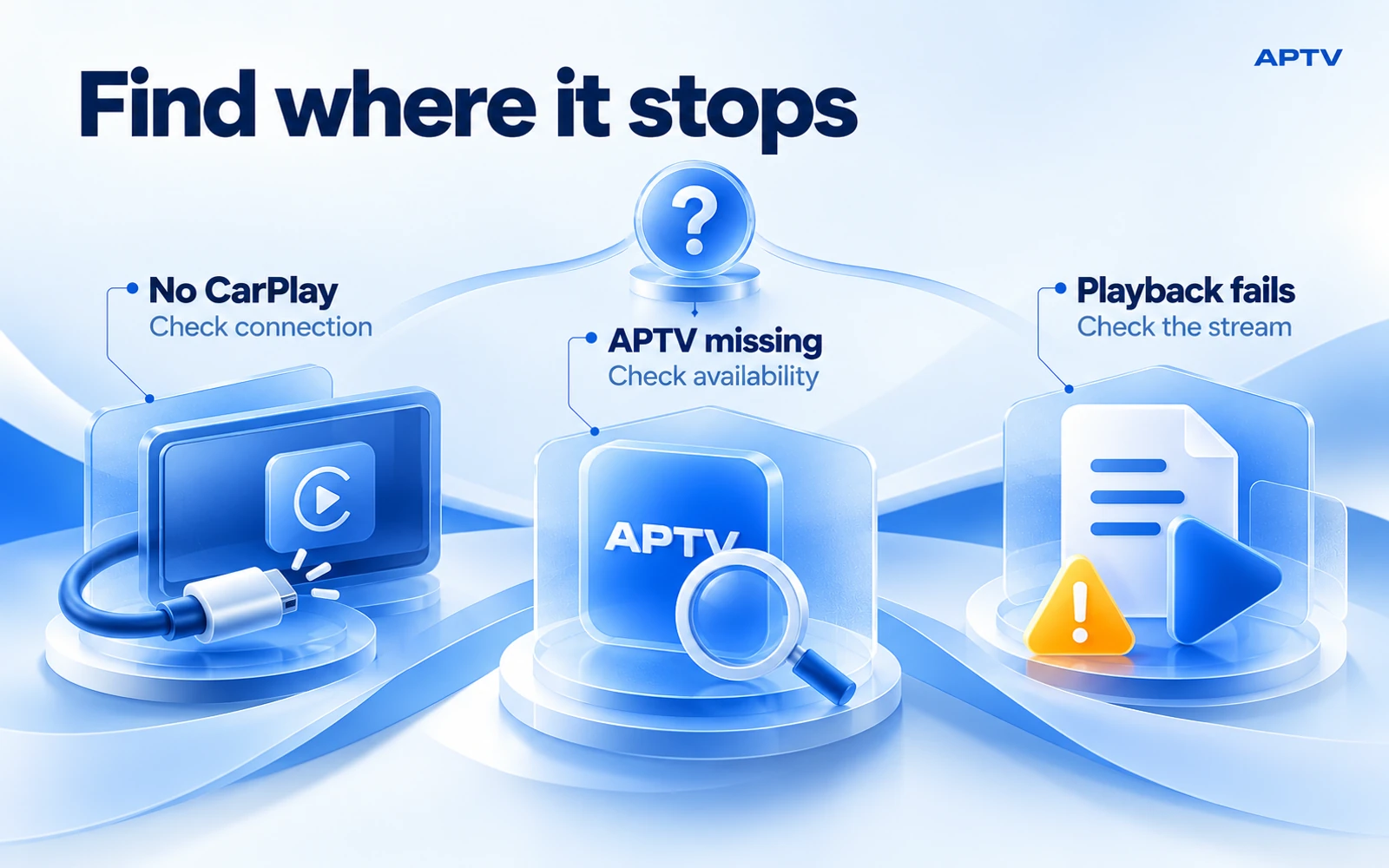
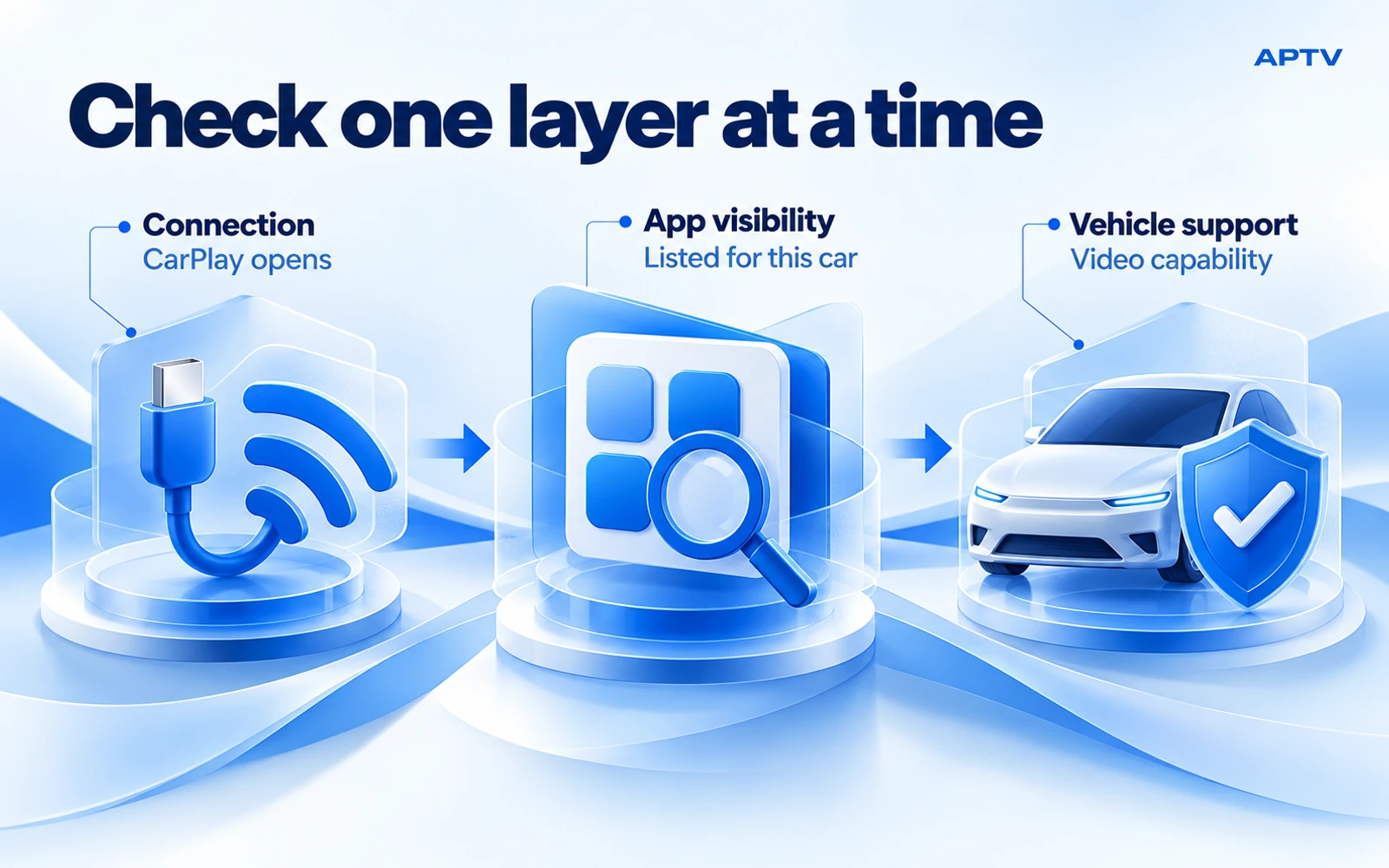
If APTV is not showing in CarPlay, first check whether CarPlay itself is working. If the CarPlay interface opens but APTV is missing, check the installed app, the available app list for that car, and the vehicle's relevant capabilities. If APTV opens but your content does not play, test the same item on the iPhone before changing the connection. These symptoms look similar from the driver's seat but point to different checks.
Carry out the following checks while parked. Work through the branch that matches what you can see, and change one thing at a time. A precise observation is more valuable than reinstalling everything at the start.
Name the symptom before changing settings
Describe the last stage that worked. Did the phone connect? Did the CarPlay home screen appear? Was APTV offered? Could you open a playlist? Did the selected item produce picture or sound? This sequence gives you a useful starting point without guessing the cause.
| What you see | Start here | Avoid assuming |
|---|---|---|
| No CarPlay interface | Phone-to-car connection | That APTV caused the connection failure |
| CarPlay opens, APTV absent | App availability and vehicle support | That adding another playlist will restore an icon |
| APTV opens, content fails | Same-item playback on the phone | That a new cable will repair an expired source |
| Sound without expected video | Output behavior and video capability | That audio success proves video compatibility |
Also note whether this exact combination ever worked. A new setup needs a compatibility check; a previously working setup needs a record of what changed. Neither case should begin with a claim that the app, car, or source is definitely at fault.
If CarPlay itself does not open
Begin with Apple's current CarPlay connection checks. Confirm support for your vehicle and region, update the iPhone, and follow the manufacturer's connection instructions. For wired use, compare a suitable cable or another supported port. For wireless use, check Bluetooth, Wi-Fi, and the CarPlay network's Auto-Join setting.
Apple also recommends selecting CarPlay manually if it does not launch, restarting the phone and car, checking Siri and CarPlay restrictions, and checking the stereo's firmware. Re-pairing is another documented step: Settings, General, CarPlay, your car, then Forget This Car. Retest after each change rather than doing everything together.
If a phone is managed by a workplace or family restriction, resolve that through the responsible administrator rather than trying to bypass the restriction. Use vehicle-specific guidance for restarting or updating the infotainment system; controls and power behavior differ.
Once ordinary CarPlay works, stop changing the base connection and move to the app-specific branch. Repeatedly replacing a working cable will not tell you why one app is absent from the available list.
If CarPlay works but APTV is missing
Confirm that APTV is installed on the connected iPhone, not merely on another device using the same account. Open it on the phone and check for an available update. Verify the correct product through the APTV listing from Ion Danilov; similar app names can lead you to the wrong support instructions.
Next, use the app arrangement controls described in Apple's CarPlay user guide: Settings, General, CarPlay, select the vehicle, then Customize. If the app is available to add, add it and reconnect. Check the full CarPlay home screen rather than only the recently used apps.
Customize arranges apps available to that setup. It does not force an unsupported app or vehicle capability into existence. If APTV is not offered there, record that fact instead of repeatedly editing your playlist.
Distinguish “not offered in Customize” from “added but not visible on the display.” The second observation suggests a different question about the current connection or display state. A screenshot of the relevant list can help support, provided it contains no personal notifications, account information, or private stream addresses.
Check video capability separately from ordinary CarPlay
A car can provide familiar CarPlay functions without supporting every video experience. In Apple's explanation of CarPlay video apps, video-app availability depends on vehicle support, and a vehicle can report that video playback is unavailable. Apple also distinguishes video-only apps from apps with audio capability.
That platform behavior is useful context, not a diagnosis of APTV's implementation on your particular phone. Do not infer the app's permissions or exact compatibility from the name of an iOS release, a social-media clip, or another driver's result. Verify the car, infotainment software, iPhone software, and current APTV version together.
When asking the vehicle manufacturer, make the question specific: does this infotainment system support the video-in-car feature or the particular AirPlay video route you are trying to use? Asking only whether the car supports CarPlay may get a correct answer to a different question.
If a viewing restriction appears, keep the test parked and use the supported behavior. Do not alter a vehicle's safety signals or seek a workaround that forces video while driving. A restriction message is an observation to report, not proof that your playlist needs repair.
If APTV opens but the selected item fails
Return to the same item on your iPhone while you remain in the parked location. Do not compare a different channel at home with the one that failed in the car; that changes the content, place, and connection together.
If the item also fails on the phone, focus first on the source and the internet connection available there. Check whether you can open the playlist and whether a different authorized item behaves differently. A list can load successfully while an individual stream inside it is unavailable.
If the item plays on the phone but fails only when you use the car display, record exactly what happens after the output changes. Does the picture remain on the phone? Is there sound in the car? Does playback stop? Is an error shown? These distinctions help separate output behavior from initial playlist access.
For media that starts and then repeatedly pauses, use the phone buffering troubleshooting guide. Buffering is different from a missing app icon. Keep any further comparisons controlled, and avoid treating a paid upgrade, new source, or VPN as an automatic fix.
If it worked before, record the change
Make a short timeline before making further adjustments. Note the last successful session, the first failure, and changes between them. Useful changes include an app or iOS update, infotainment update, replacement cable, new adapter, changed playlist, or different network location.
This does not establish that the most recent update caused the problem. It narrows the conditions that support may need to reproduce. If you changed several things during troubleshooting, list those separately from the change that happened before the original failure.
Use one comparison that addresses your symptom. For example, if ordinary CarPlay stopped connecting after adding an adapter, a documented direct connection can isolate that extra component. If CarPlay still works and only one stream fails, changing the adapter is a weaker test than comparing the same stream on the phone.
Preserve your playlist and access details before considering a reinstall. A support-directed reinstall may be useful in a specific case, but starting there can remove information without answering whether the problem concerns compatibility, output, or content.
Send a report someone can act on
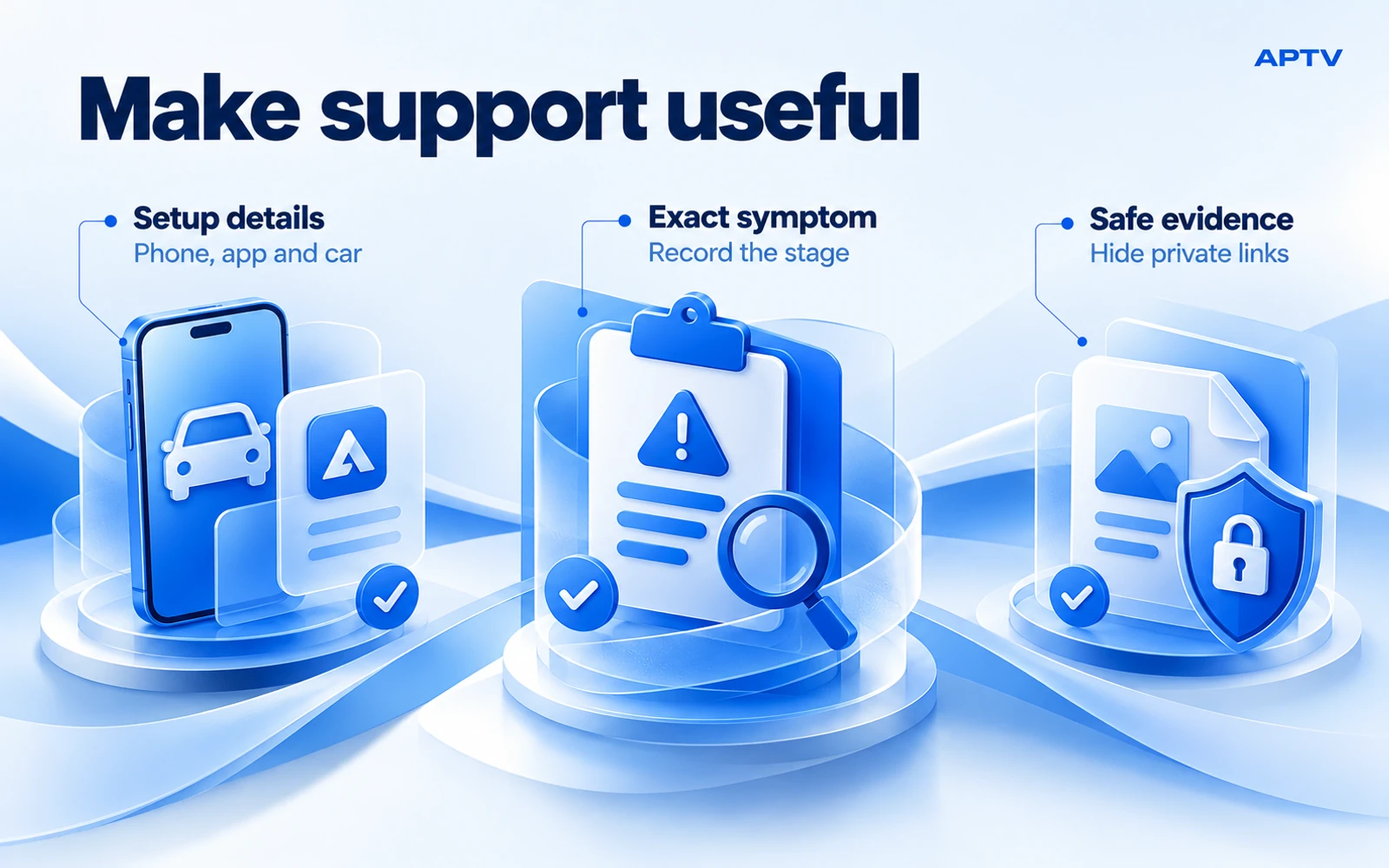
Collect the minimum details needed to identify the setup and reproduce the failure:
- iPhone model and exact iOS version.
- APTV version and confirmation of the correct listing.
- Vehicle make, model, year, and infotainment system or aftermarket receiver.
- Wired or wireless connection, including any adapter.
- The last working stage and any exact error text.
- Whether the same item plays on the phone in the parked location.
- Whether the setup worked previously and what changed.
Keep the report focused on observations. “CarPlay opens; APTV is absent from Customize; phone playback works” is a useful summary. “Nothing works” leaves support to reconstruct the entire sequence. You do not need to send your whole library to explain an app-visibility problem.
Keep private access out of the evidence
Before sharing a screenshot, inspect address fields, account labels, notifications, and filenames. A playlist URL may contain credentials or a token even when no password box is visible. Replace private values with a clear placeholder and preserve only the error wording needed to understand the issue.
Do not paste a full working playlist into a public comment or third-party validator. If official support needs a reproducible media example, ask what information is necessary and use a source you are authorized to share. Keep a private copy of your original setup so you can distinguish your edits from the source's behavior.
Is trying another car a useful comparison?
It can be, provided you record what changed. A successful result in a second vehicle shows that the phone, app, and source can work in that second setup. It does not prove the first vehicle is defective or supports the same video route. Different receivers and firmware can expose different capabilities. Treat the comparison as one piece of evidence and include both vehicle details in your report. If you cannot access another car, the phone-only test and a precise description of the failed stage still provide useful information.
Return to the correct next step
For a new configuration, follow the parked APTV CarPlay setup guide. For an unresolved app-specific problem, use the support contact on the official APTV CarPlay page with the focused report above. APTV plays your own playlist; it cannot restore expired content access or establish a vehicle feature that the connected system does not support.
Frequently asked questions
What should I check if CarPlay itself does not connect?
Start with the car connection before investigating APTV. For wired CarPlay, check the supported USB port and cable; for wireless CarPlay, check the required Bluetooth and Wi-Fi connection. Follow Apple's connection checks and your vehicle instructions while parked, noting whether any CarPlay interface appears.
Why is APTV missing even though other CarPlay apps appear?
A working CarPlay connection does not establish that every app or video feature is available in that vehicle. Review the apps available for your car in iPhone CarPlay settings, then confirm the app version and supported vehicle route. Customization cannot add a capability the combination does not support.
Should I treat unavailable video while driving as an app fault?
No. Video availability can depend on the vehicle's supported features and parked state. Perform setup and troubleshooting while safely parked. Do not attempt to bypass vehicle restrictions; a missing picture during driving does not, by itself, identify a playlist or app problem.
Why does my stream work on home Wi-Fi but fail beside the car?
The connection available beside the car may differ from the one used at home. Test the same item on the phone before connecting the dashboard, and check cellular permission, signal, and source access. Connecting CarPlay does not by itself supply internet access to an online stream.
What information should I send support when APTV does not appear or play?
Include the iPhone model, iOS and APTV versions, vehicle and infotainment details, connection method, and exact failed stage. State whether CarPlay connects and whether the same item plays on the phone. Share the error wording, but remove playlist tokens, passwords, and other private account details.