
APTV on CarPlay: Set Up Your Playlist While Parked
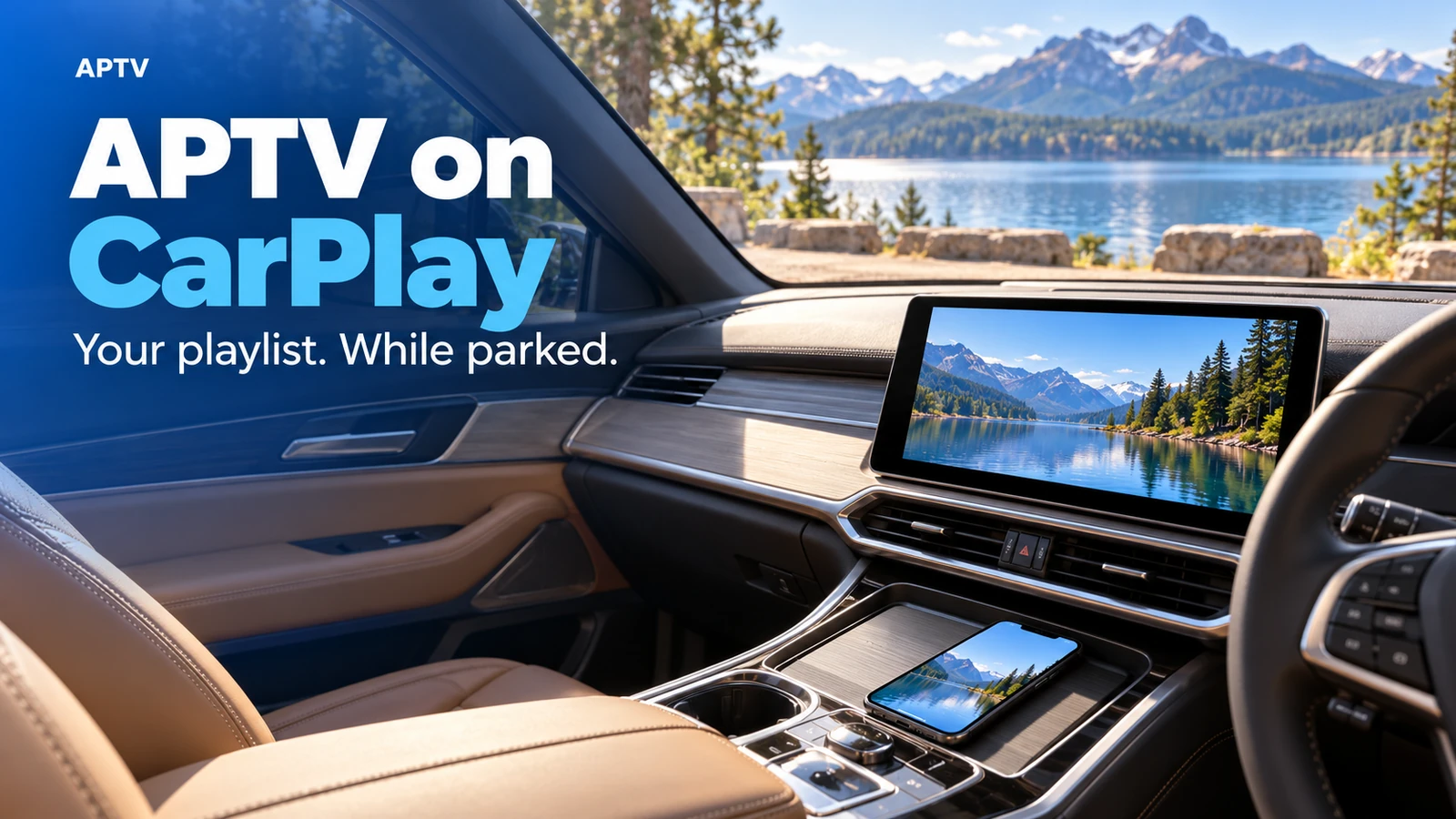
To use APTV on CarPlay, first make sure your own playlist plays on your iPhone. Connect the phone using your vehicle's supported CarPlay method, then open APTV on the car display where it is available. Keep video viewing for when the vehicle is parked. A working CarPlay connection alone does not establish that a particular car supports video, so check the car and app combination before treating the dashboard as another television.
This guide takes you from a working phone playlist to a careful first session in the car. It separates preparation, connection, and playback so that one missing requirement does not turn into a confusing series of resets.
Check the three essentials first
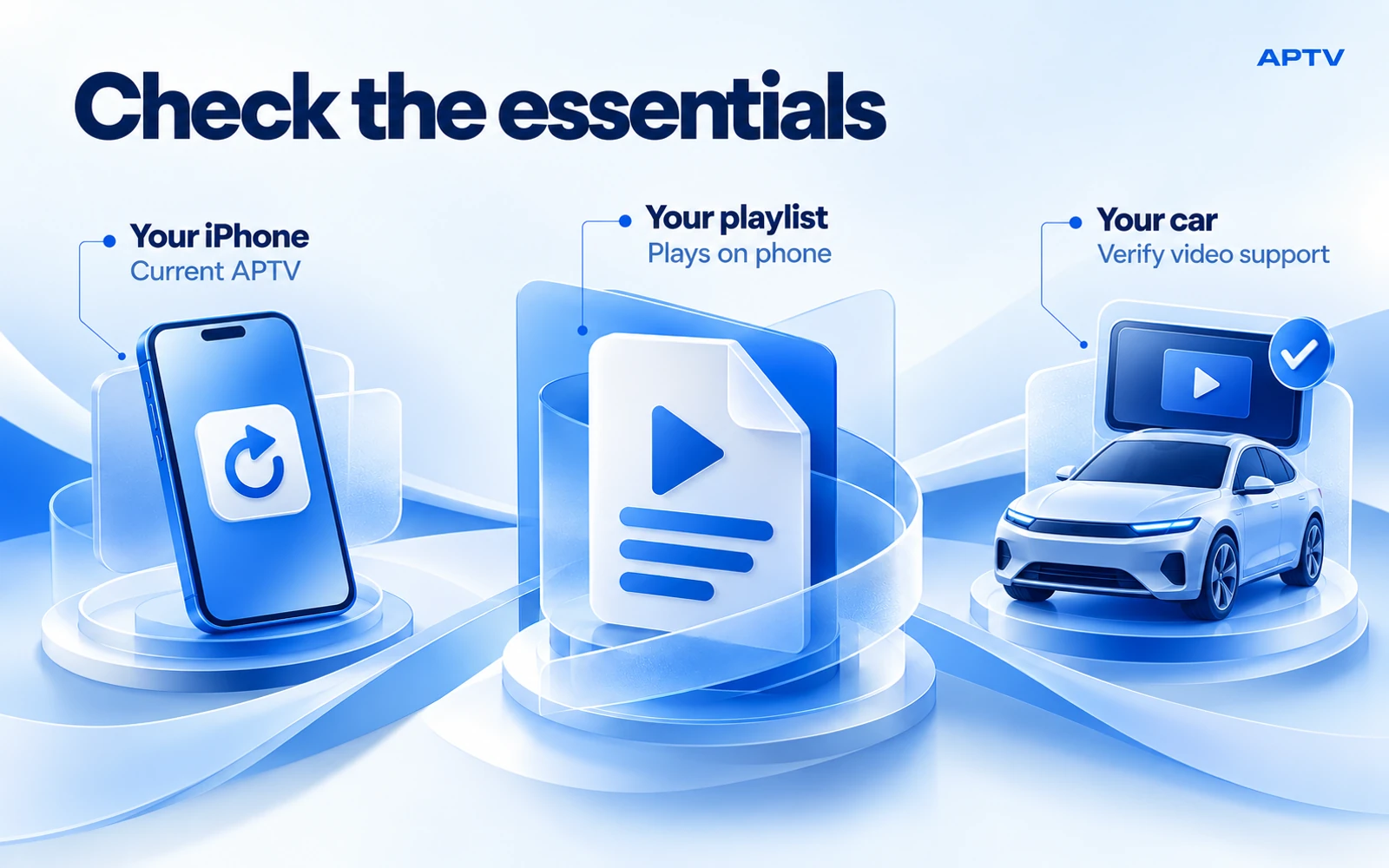
Start with the correct iPhone app. The APTV App Store listing identifies Ion Danilov as the developer. Check the listing's current device requirements and available update on your phone. Similarly named players are separate products, and instructions for one should not be assumed to apply to another.
Next, have a playlist or stream you are authorized to use. APTV supplies the player, not a channel package. An app installation cannot replace missing content access, and a working playlist file does not guarantee that every address inside it remains available.
Finally, establish what your car actually supports. Apple describes video apps and AirPlay video for supported vehicles when parked in its CarPlay overview. Ask about your specific vehicle, infotainment system, and software version. A broad claim that a car “has CarPlay” leaves the video question unanswered.
Prepare one reliable stream on your iPhone
Do the playlist work before sitting down to configure the car. If you have not imported your source yet, follow the separate guide to adding an M3U playlist. Keep the full import process on the phone, where copying a URL and checking a filename are easier.
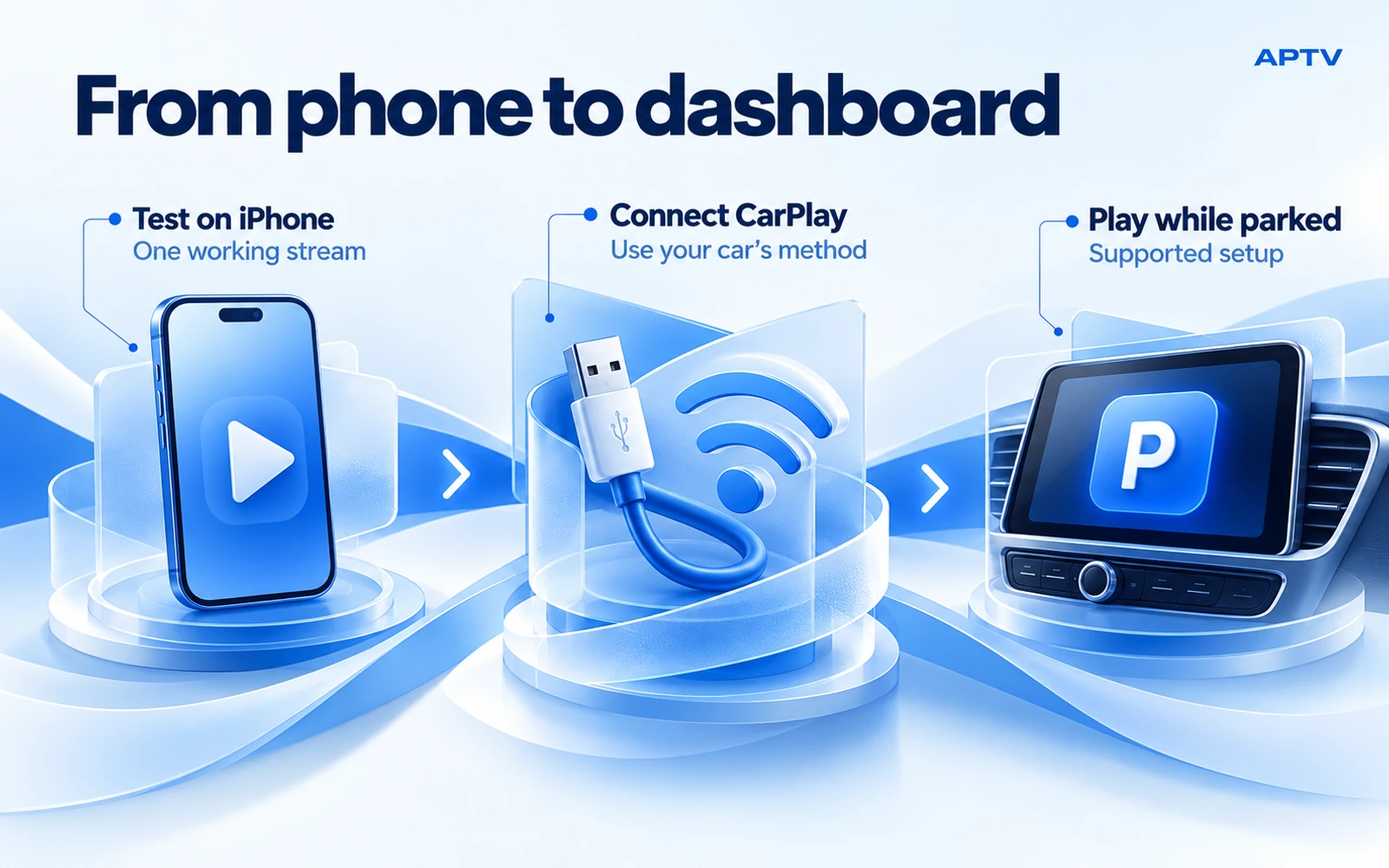
Choose one familiar item as your first test. Open it in APTV, confirm that the picture appears, and listen for expected sound. Use content whose behavior you understand: a silent nature clip is a poor audio test, while a stream that is currently off air tells you little about the player.
Write down the item's display name without copying its private address into a public note. That gives you a consistent reference when you move to the car. Starting a different item there would change both the output device and the source at once.
If playback already fails on the phone, resolve that before investigating the dashboard. This avoids spending time on pairing settings for a problem that exists without CarPlay. Keep an original copy of your playlist somewhere private before making any edits; troubleshooting should not leave you without your working configuration.
Connect through your vehicle's supported method
Follow the car manual for the correct USB port or wireless pairing procedure. For the general iPhone side, Apple's CarPlay setup instructions explain wired and wireless connections and the relevant CarPlay settings. Different vehicles expose different pairing controls, so a procedure from another model may not match yours.
With wired CarPlay, use the designated data connection. Seeing a charging indicator is useful, but it does not by itself demonstrate that a CarPlay session has started. With wireless CarPlay, follow the documented pairing process and keep the required wireless settings enabled. Do not disable Wi-Fi as a general streaming fix during a wireless CarPlay session.
Before opening APTV, confirm that the ordinary CarPlay interface appears and responds. This is your connection checkpoint. If the display still shows only the car's own menu, you have not yet isolated an APTV problem.
Know which screen and playback route you are using
Several experiences can involve the same iPhone without being interchangeable. Identifying the route helps you choose the right instructions and describe any problem accurately.
| Experience | What you are checking | What it does not prove |
|---|---|---|
| APTV on the iPhone | Your chosen stream plays on the phone | Dashboard video compatibility |
| APTV available in CarPlay | The app is exposed in that connected setup | Availability on every other car |
| AirPlay video to a supported car | The car is offered as a compatible video destination | That every CarPlay display is an AirPlay receiver |
| AirPlay to a television at home | Your home receiver accepts that output | The same behavior in the vehicle |
Use the route supported by your actual setup. If APTV is available on CarPlay, open it there and select the item you prepared. If you are checking an AirPlay route, verify that the car supports it before looking for a destination. A missing receiver is not a reason to substitute random connection apps.
Keep the first attempt simple. Use one phone, one playlist item, and the car's normal connection. Adding an adapter, changing the source, and installing a second player together creates several possible explanations for any result.
Plan internet access separately from the dashboard connection
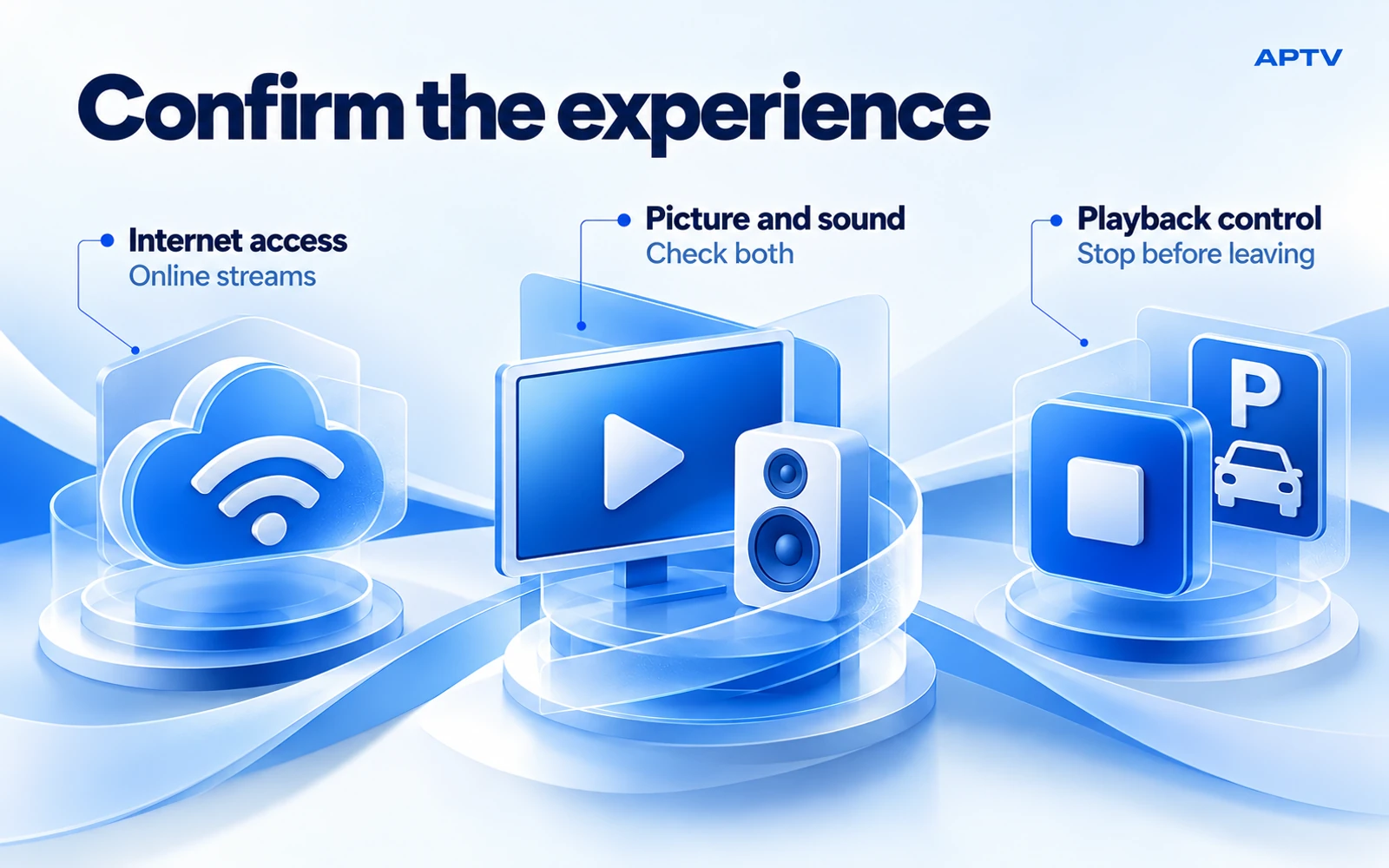
A connection to the car and access to an online stream are different requirements. Do not assume that plugging in a cable, pairing wirelessly, or seeing a Wi-Fi symbol supplies internet access for the media you selected.
Before the first session, decide which connection will carry the stream. If you intend to use cellular data, check that the relevant line and app are allowed to use it. Apple explains the controls and per-app usage figures in its guide to cellular data on iPhone. Review your carrier's allowance and roaming terms rather than assuming video is included without limits.
An especially useful comparison is to try your chosen item on the phone in the parked location before connecting to the dashboard. Success on home Wi-Fi earlier in the day does not establish that the same source is reachable through the connection available beside your car.
Avoid repeatedly loading a large playlist while trying to diagnose one item. Keep notes on what succeeds, which connection was active, and whether the problem begins before or after you select the car display. Those observations are more useful than a general statement that the internet “seems fine.”
Check picture, sound, and stopping independently
Once the item opens, check three things separately: the picture you expected, the sound you expected, and the ability to stop playback using an available control. These are different observations. Sound alone does not establish that dashboard video is supported, and a visible image does not establish that audio reached the intended speakers.
Use a comfortable volume and avoid testing with content you cannot easily pause. Keep any phone interaction within the parked setup session. Do not continue adjusting controls after you begin driving.
If the result differs from the phone test, note the exact difference. “The item opens on my phone, but the car display stays on its menu” is much more informative than “casting is broken.” It also avoids confusing CarPlay with a home television's casting system.
For a missing icon or failed dashboard session, use the dedicated APTV CarPlay troubleshooting guide. It separates an absent CarPlay connection, unavailable app, and stream playback problem instead of recommending the same reset for all three.
Make the next parked session easier
Once you have a working combination, keep a short private setup record. Include the phone and app versions, vehicle and infotainment details, connection method, and the name of your reference item. Record what actually worked, not what a compatibility table suggested might work.
After a software update or a change of vehicle, repeat the small check before a longer session. A result from a rental car, replacement stereo, or older software version is useful background, but it is not a guarantee for the new combination.
End each viewing session deliberately. Stop the media before leaving the parking place and put the phone somewhere secure. For a future trip, prepare content and access beforehand so that account prompts, expired links, or playlist editing do not become tasks you attempt on the road.
Start with a small, verified setup
Use the APTV CarPlay page as the product starting point. Bring your own authorized playlist, confirm one item on the iPhone, and check your vehicle's supported route. Build from a successful parked test rather than assuming every phone, car, and stream will behave identically.
Frequently asked questions
Can every car with CarPlay play video from APTV?
No. Having CarPlay does not establish support for every video route. Check the vehicle's video capability and the exact phone, app, and infotainment combination. Use supported video features only while parked; a working phone stream alone does not prove dashboard video compatibility.
What should I do before connecting APTV to CarPlay?
Import your own supported playlist on the iPhone and confirm that one authorized item plays. Test it with the internet connection available at the parked location, then connect CarPlay using your vehicle's supported method. This separates a source or phone problem from a dashboard problem.
Does a saved M3U file let me watch offline?
Not by itself. A playlist generally contains references to media; saving that list does not download the programs it names. If its entries point to online streams, they still need a usable connection. Do not treat playlist import as an offline-download feature.
Should I buy an adapter before trying the normal setup?
Start by identifying your car's existing connection and video capabilities. An adapter introduces another device and another compatibility question. Purchase claims should be checked against the exact car, phone, and intended playback route; a generic “wireless CarPlay” label does not answer every video question.
Does an app purchase include the channels I want?
APTV is a player for content you supply. Review any app offer for its actual software entitlements, and keep that purchase separate from your playlist source. Paying for an app is not a remedy for an expired stream or missing content access.