
How to Add an M3U Playlist on iPhone and Android
To add an M3U playlist on iPhone or Android, open the correct APTV app, use its playlist import function, and supply either your playlist URL or a local playlist file. Then open an entry and confirm that it plays. Installing APTV does not add TV channels: you need your own authorized playlist and working streams.
The steps below describe the documented URL and file workflows without assuming that every app version uses identical screens. APTV's website calls its entry point “Add Playlist.” The precise location and subsequent button labels should be checked in your installed version. Stop if you see an unrelated login form rather than improvising with account credentials.
Before you start
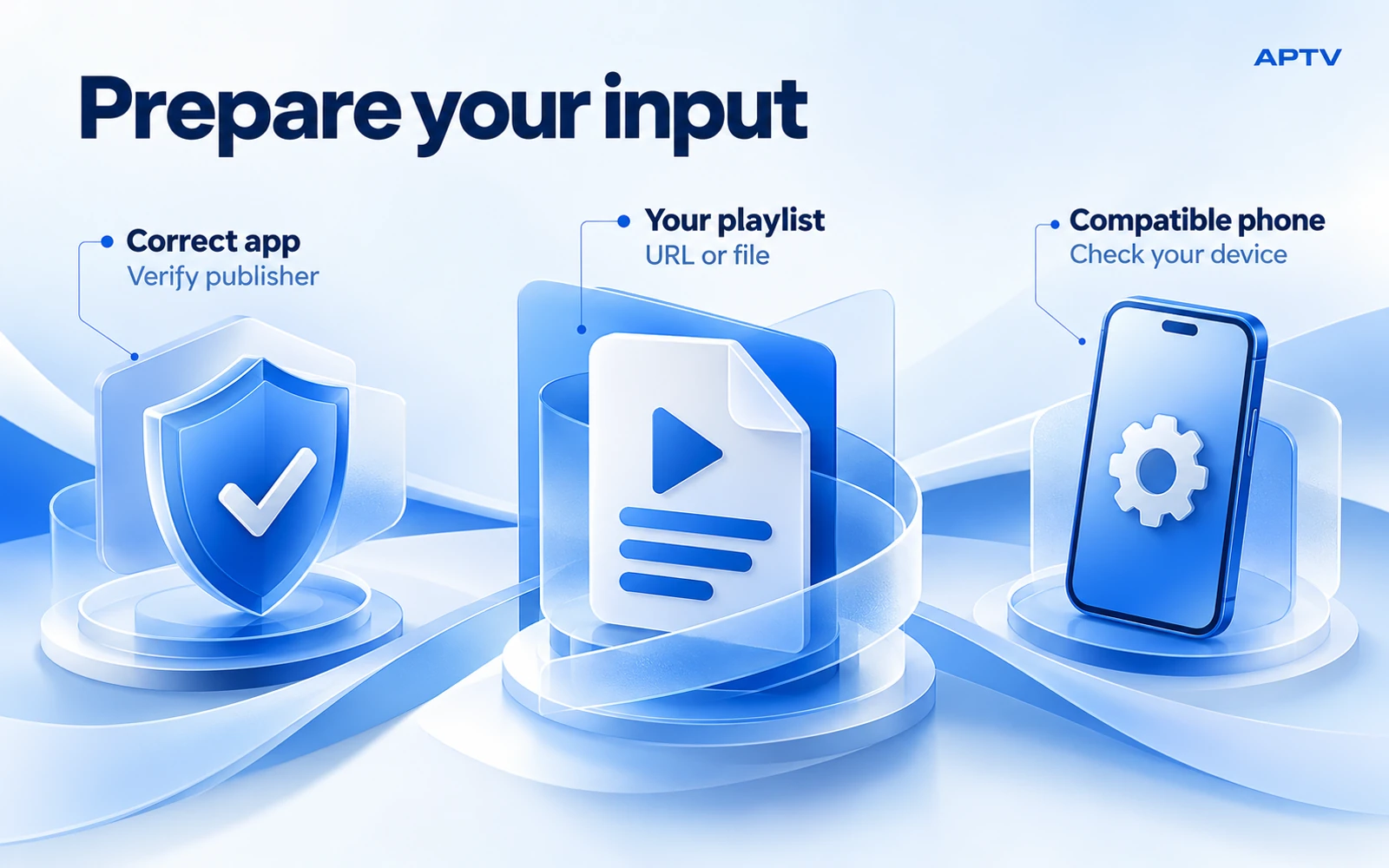
Have three things ready: a compatible phone, the right application, and a playlist supplied by a source you trust. A playlist is a set of media references, not the videos themselves. A file saved on your phone can still point to online streams that require an internet connection.
For iPhone, use APTV for iPhone, published by Ion Danilov, with App Store ID 6476621657. For Android, use APTV for Android, published by BRILIC MEDIA. Similar names are not enough to identify the application.
Decide which input you actually have. A complete URL belongs in the URL import route. A downloaded text playlist belongs in the file route. A website account page, a screenshot of channels, or a server address accompanied by separate credentials is not automatically an importable M3U playlist. Ask the source owner for its supported playlist option if necessary.
Prepare the playlist before opening the app
Keep the original message or file available so you can compare it with what you import. When copying a URL, select the entire address, including any query fields after a question mark. Do not remove a long ending because it looks untidy; it may identify your access or requested playlist format.
For a local file, save it somewhere you can find through the phone's file picker. Use a clear name such as home-streams.m3u, and make sure it has finished downloading. A cloud storage placeholder may need an internet connection before another app can read its contents.
If you created the file yourself, compare its layout with the documented M3U file structure. Keep display names and stream addresses on their intended lines. Do not open a private playlist in a public online validator: a working URL may contain credentials even when no password field is visible.
Before importing a replacement collection, give it a distinguishable name if naming is available. For example, use a label that separates a newly supplied source from an older saved copy. This prevents a successful update from being overlooked because you opened the previous collection again. Keep source addresses private even when the visible labels are similar.
Import an M3U playlist on iPhone
Use a playlist URL
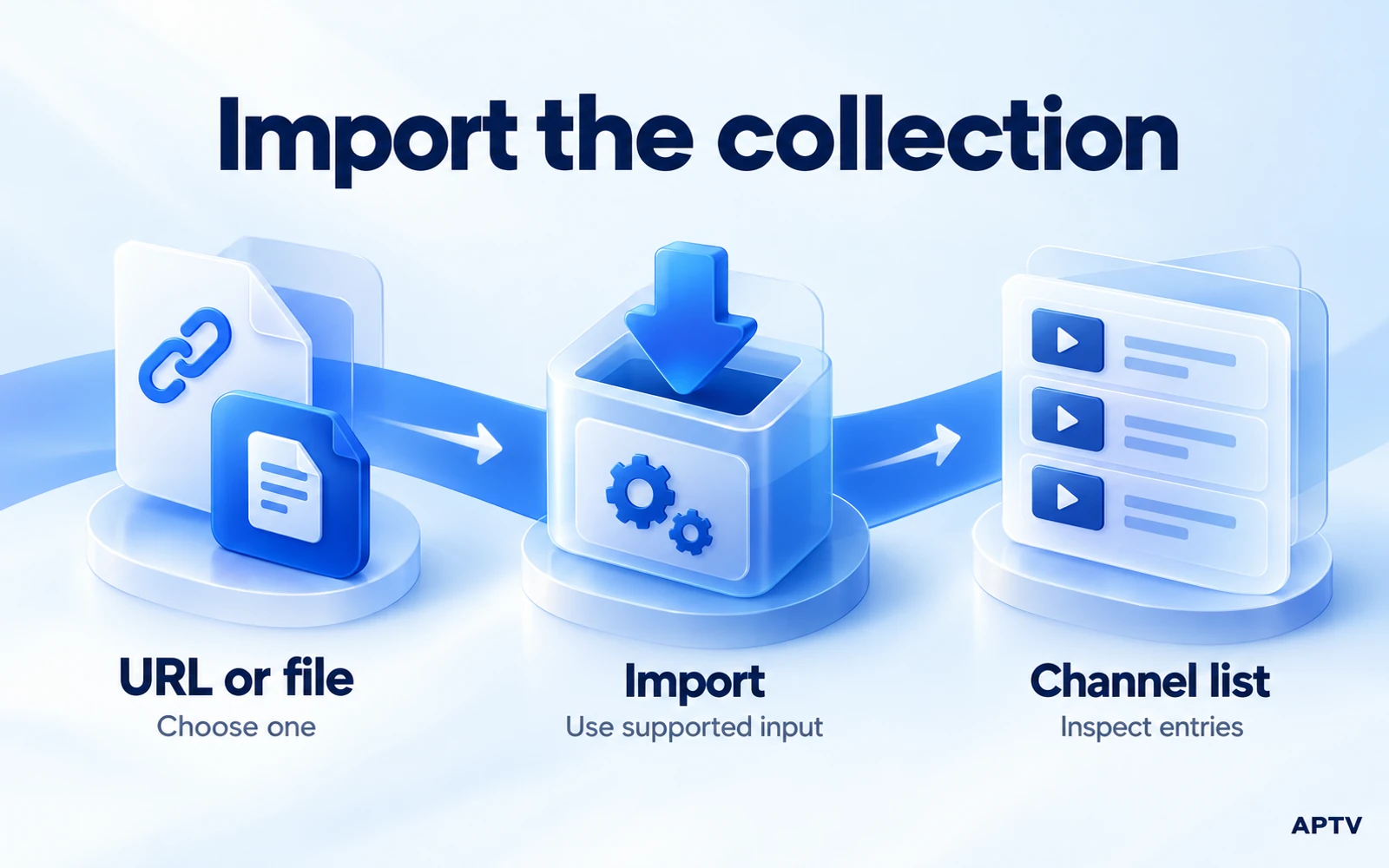
Open APTV on the iPhone and enter its playlist addition workflow. Choose the route for a URL when offered. Paste the complete address from your trusted source, then compare its beginning and ending with the original. Remove accidental surrounding spaces, but preserve characters inside the address.
If the app asks for a playlist name, choose a useful label, such as “Home camera feeds” or “Licensed training videos.” This label helps you recognize the collection later; it does not change the source's access permissions. Complete the import using the confirmation control shown by your version.
Let the import finish before starting another one. If it succeeds, open the resulting collection and choose an entry you expect to be available now. A visible collection is only the first success check: the app still needs to retrieve and play the selected stream.
Use a local file
Save the playlist in Files first if it arrived as an email attachment or browser download. Return to APTV's playlist addition workflow and choose file selection when available. Browse to the saved location and select the actual playlist, not a screenshot, compressed archive, or similarly named document.
If the file is dimmed or cannot be selected, inspect its name and type before changing anything. A file named home-streams.m3u.txt may have been saved as an ordinary text document with an extra extension. Correct the filename only after confirming that the contents really are playlist text.
Complete the import and check the displayed collection. Do not assume a file imported on one phone will stay synchronized with an edited copy elsewhere. Unless the app explicitly documents a continuing link to that file, treat the import as a step you may need to repeat after updates.
Import an M3U playlist on Android
Use a playlist URL
Open the BRILIC MEDIA app and locate its playlist import function. Select URL input where offered, paste the complete playlist address, and confirm the operation. The Android package name contains several media terms, but those terms do not establish which login forms the app currently supports.
If you were given a server, username, and password separately, do not squeeze them into a URL field or guess a conversion pattern. Obtain a supported M3U address from your source owner. This avoids creating a malformed request and keeps the first import focused on a documented input method.
Use a local file
Download the playlist to the Android phone, then use the app's file import route. In the system file picker, navigate to the folder containing your download. Select the playlist and finish the import. Storage locations and picker layouts vary by Android version, phone manufacturer, and storage provider.
If you cannot find the file, first confirm that the download completed and note its actual folder. Repeatedly downloading it can create several copies with numbered names, making it harder to tell which one you imported. Keep one clearly identified working copy while you establish the setup.
Grant access through the system picker as needed for the file you selected. Do not assume a broad storage permission will fix a malformed playlist. If the import fails after selection, record the exact message and keep the original file unchanged for comparison.
Confirm playback in three stages
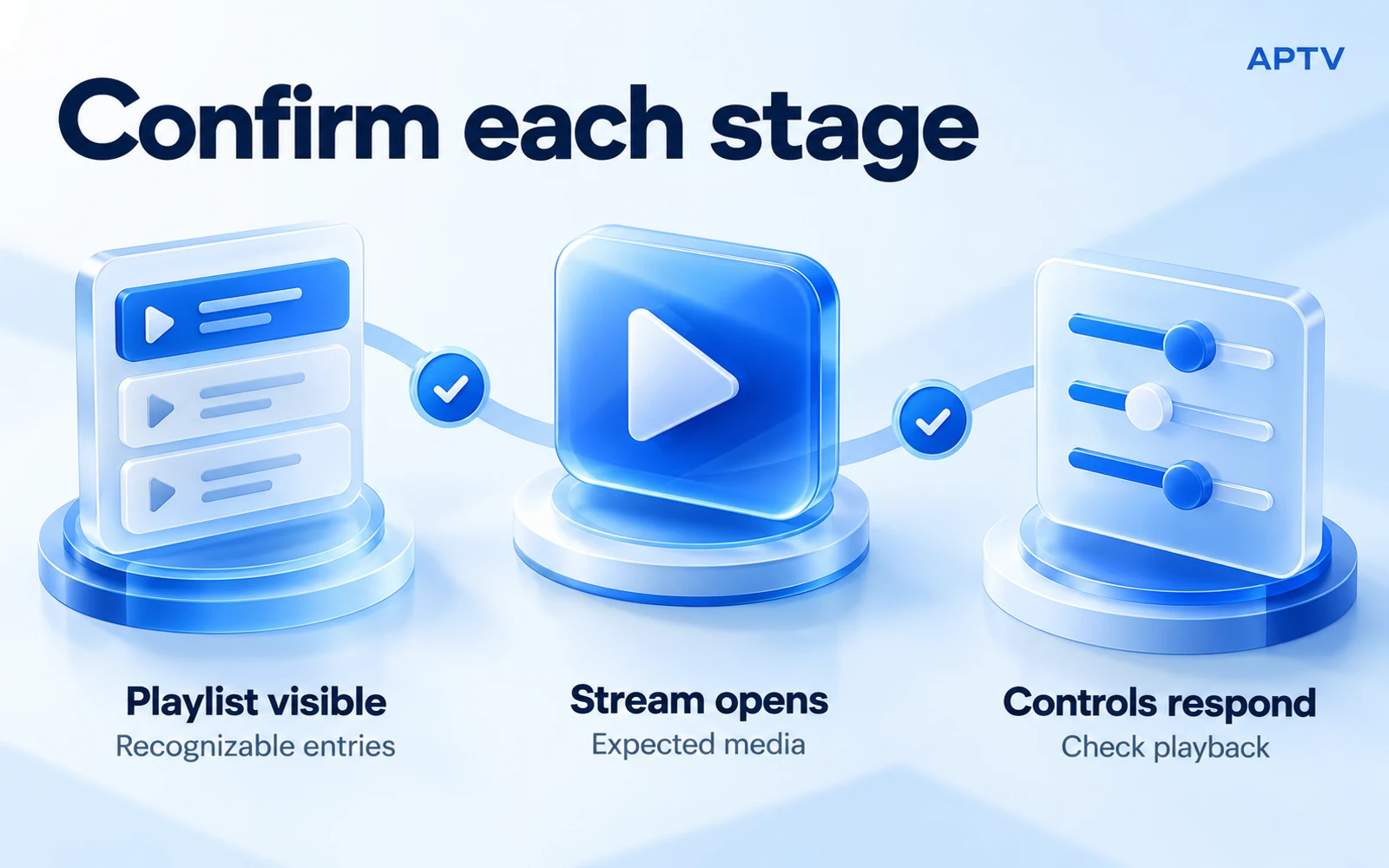
Check the collection, the stream, and the controls separately. This prevents a partly successful import from being mistaken for complete failure, or a visible list from being mistaken for working playback.
| Check | What success looks like | If it fails |
|---|---|---|
| Playlist visible | The imported collection contains recognizable entries | Check the selected URL or file |
| Stream opens | The chosen entry produces the expected picture or audio | Check that particular stream's availability |
| Controls respond | Available play, pause, and output controls behave as expected | Record the control and playback condition |
Start with one familiar entry. If that works, open a second independent entry from the same collection. This is a practical spot check, not proof that every listed channel is available. A large directory can contain a mixture of working, expired, scheduled, or unsupported streams.
Check the phone itself before adding a TV receiver or another output device. If playback already fails locally, casting adds another variable without resolving the original problem. Once local playback works, a separate receiver setup can be evaluated on its own terms.
Do not use a live stream's seek bar as the only test of success. Some sources do not provide an earlier timeline. Likewise, an audio-only entry should not be rejected because it lacks a picture. Compare the result with what the source is meant to supply.
Reopen the collection after leaving the playback screen and confirm that you can locate the same working entry. This checks the everyday task of returning to your media, not just the initial import. If duplicate entries appear, compare the source file before deleting anything; similarly named items can represent different streams.
Keep a simple setup record
Write down the app version, phone model, operating system, input type, and name of the entry that worked. Keep credentials out of that record. This gives you a useful starting point if a future update or replacement playlist changes the result.
If you imported both a URL and a file during setup, label them clearly. Otherwise, an outdated local copy can look like a failed refresh of the current URL. Confirm which collection you are opening before reporting missing entries or repeating the import process.
What to do if import fails
Locate the failure before trying a fix. An address that cannot be retrieved, a collection that opens with no entries, and an entry that refuses to play are different problems. Use the guide for a playlist that will not load to choose the appropriate checks.
Avoid reinstalling the app as your first response. First preserve your source information and any settings you may need. Reinstallation cannot renew an expired stream address or restore content that its owner has removed. An app purchase also cannot guarantee that an unavailable stream will become accessible.
If the filename is confusing, read the explanation of M3U versus M3U8. Renaming a file does not repair its text, change the underlying media, or grant access. What matters is whether the file contains a structure the player accepts and references streams it can retrieve.
For support, describe the last successful stage and the first failed one. “The file imports, three entries appear, and the first entry returns an error” is far more useful than “nothing works.” Include a sanitized screenshot if appropriate, with account information and private URLs removed.
Ready to begin? Use the correct APTV app for your phone, import your own authorized playlist, and verify one stream before expanding the setup. Keep the original playlist so you can recover or compare it later.
Frequently asked questions
Where do I get an M3U playlist for APTV?
Use a playlist you created from your own streams or an export supplied by a service you are authorized to use. APTV is the player; installing it does not provide a channel collection. Obtain a supported playlist URL or file before starting the import.
Should I import a playlist URL or a local file?
Choose the input you actually received. Paste a complete playlist address into the URL import route, or select a downloaded playlist through the file route. A website login page or a screenshot of channels is not a substitute for either input.
Does saving an M3U file on my phone make its streams available offline?
No. Saving the playlist stores the list of media references, not the media itself. Entries that point to online streams still need internet access and any authorization required by the source. Importing a local file is not an offline-download feature.
Can I import a server address with a separate username and password as an M3U URL?
Not automatically. Separate server and account fields describe a different input from a complete playlist URL. Ask the source owner for a supported M3U export, or confirm that your exact app version supports the supplied login method before entering credentials.
Why does my playlist appear in APTV but a channel will not play?
A visible collection confirms that the list was imported, but it does not prove every referenced stream is available. Test another authorized entry and note whether the problem affects one item or the whole list. Check source access, the connection, and playback compatibility separately.